> ## Documentation Index
> Fetch the complete documentation index at: https://cobo.com/payments/llms.txt
> Use this file to discover all available pages before exploring further.
# Send a request with API Playground
> Interactive API playground for the Payments API, allowing developers to test endpoints and view responses.
The API Playground is a web-based tool designed for developers looking to explore and experiment with the Cobo Payments API directly from the documentation site, all within the browser.
## Prerequisites
Before using the API Playground, make sure you have completed the following:
* Follow the instructions in [Preparation for development environment](/payments/en/guides/preparation) to set up your Cobo account and create your organization. If an organization has already been set up, ask your organization admin to invite you to join the organization.
* Follow the instructions in [Send your first request](/payments/en/developer-tools/get-started-with-api) to generate an API key and an API secret, and register the API key on Cobo Portal.
## Steps
1. Go to any API operation in the API Reference and click **Try it**.
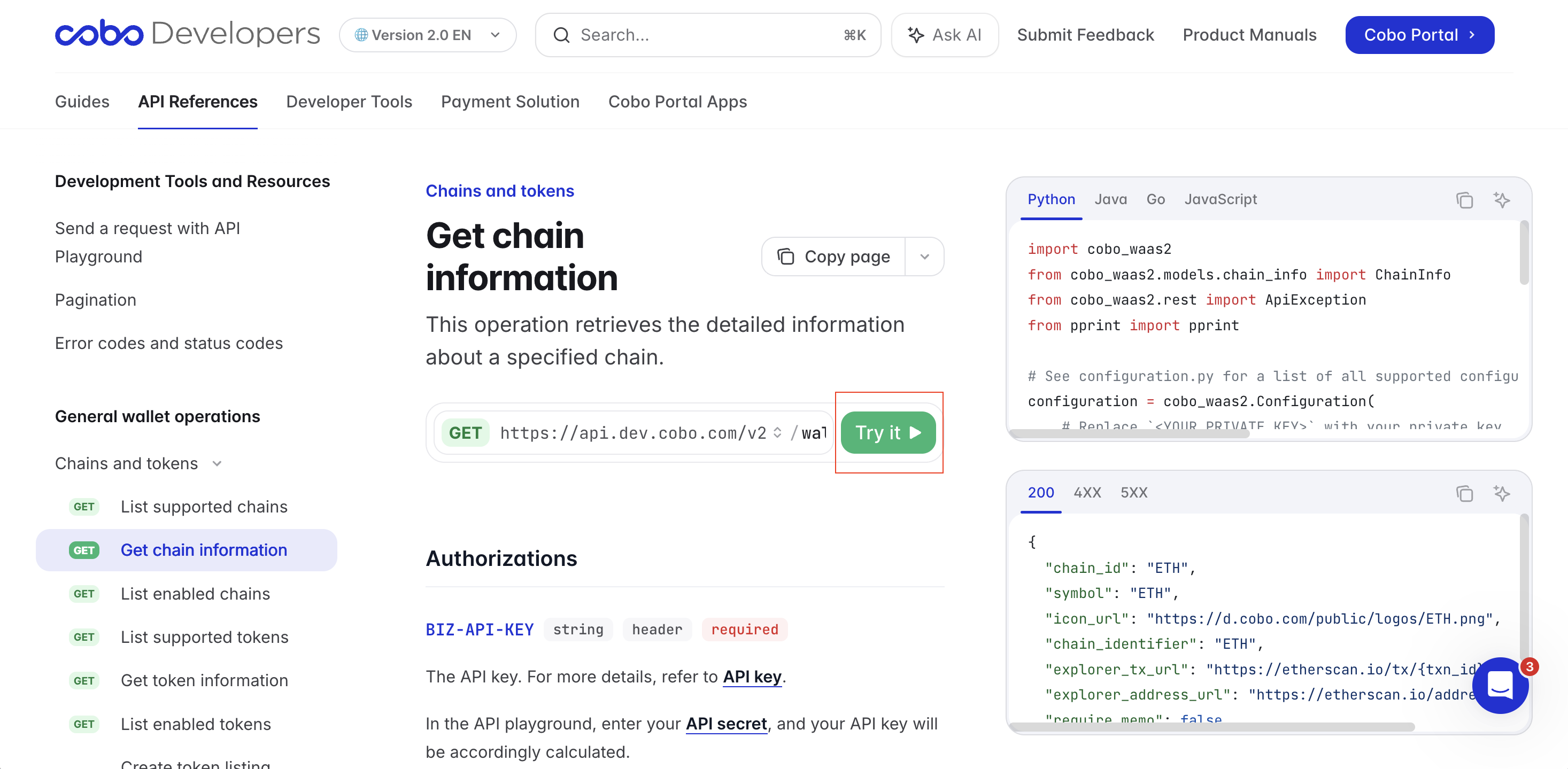 The API Playground panel will appear, showing a request editor, sample codes for different programming languages, and a response viewer.
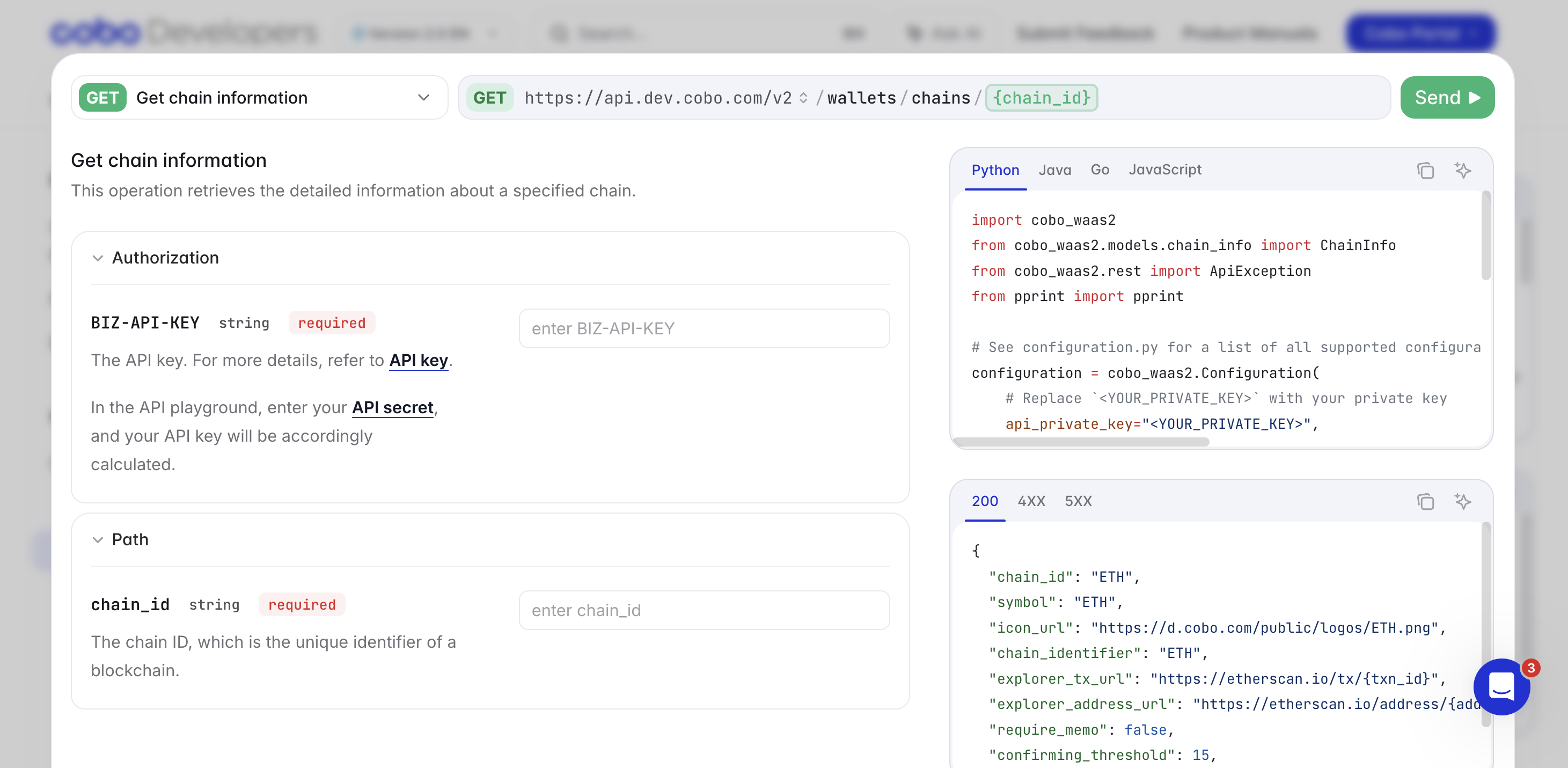 2. Modify the request as follows:
* In the **Authorization** section, enter your API secret into the `BIZ-API-KEY` field.
For API requests sent via the API Playground, you only need to provide your API secret in the request headers. However, for actual API requests, you need to provide your API key, a nonce, and an API signature as request headers. For more details, see [Authentication](/payments/en/developer-tools/cobo-auth).
* Set the path parameters, query parameters, and request body as needed.
3. Choose the API base URL that you want to send requests to:
* Development environment: [https://api.dev.cobo.com/v2/](https://api.dev.cobo.com/v2/)
* Production environment: [https://api.cobo.com/v2/](https://api.cobo.com/v2/)
You can switch between development and production directly in the API Playground by clicking the arrow icon next to the base URL.
2. Modify the request as follows:
* In the **Authorization** section, enter your API secret into the `BIZ-API-KEY` field.
For API requests sent via the API Playground, you only need to provide your API secret in the request headers. However, for actual API requests, you need to provide your API key, a nonce, and an API signature as request headers. For more details, see [Authentication](/payments/en/developer-tools/cobo-auth).
* Set the path parameters, query parameters, and request body as needed.
3. Choose the API base URL that you want to send requests to:
* Development environment: [https://api.dev.cobo.com/v2/](https://api.dev.cobo.com/v2/)
* Production environment: [https://api.cobo.com/v2/](https://api.cobo.com/v2/)
You can switch between development and production directly in the API Playground by clicking the arrow icon next to the base URL.
 For security reasons, it is strongly recommended to use the development environment for testing purposes. For more information about differences between the development and production environments, see [Environments](/payments/en/developer-tools/environments).
4. Click the **Send** button to submit the request.
Upon successful submission, you will find the response returned from the Cobo payments service in the response viewer.
For security reasons, it is strongly recommended to use the development environment for testing purposes. For more information about differences between the development and production environments, see [Environments](/payments/en/developer-tools/environments).
4. Click the **Send** button to submit the request.
Upon successful submission, you will find the response returned from the Cobo payments service in the response viewer.