> ## Documentation Index
> Fetch the complete documentation index at: https://cobo.com/payments/llms.txt
> Use this file to discover all available pages before exploring further.
# Counterparties
**Disclaimer: This article contains AI translations and should only be used as reference.** Contact Cobo's support team through [help@cobo.com](mailto:help@cobo.com) if you have any questions.
When using top-up mode for receiving payments, you can use the **Counterparties** feature to manage payer information.
After registering counterparties (either individuals or organizations) and their wallet addresses, the counterparty name corresponding to the source address will be displayed in top-up transactions, helping you identify the source of funds in a timely manner.
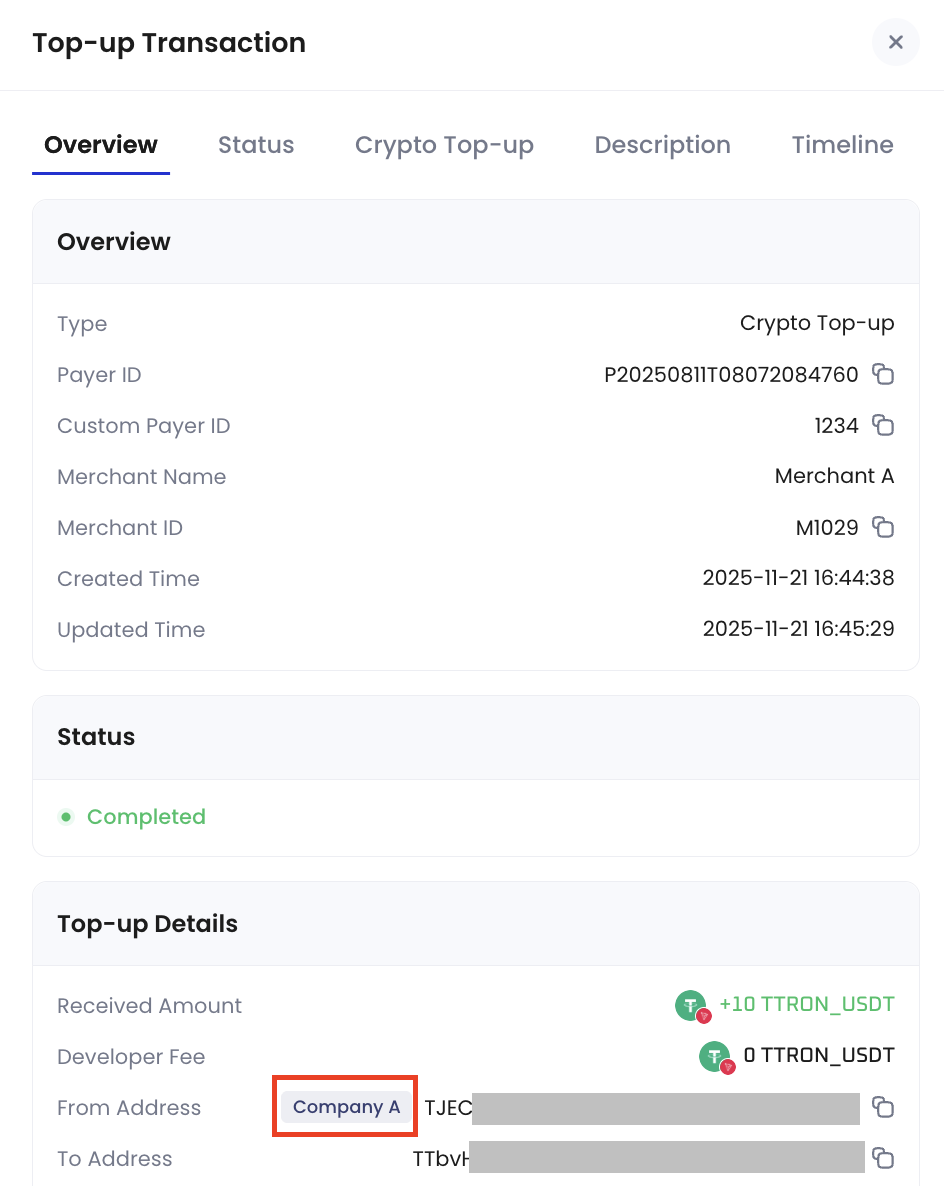 Currently, counterparty functionality only applies to **Top-up mode**. Order mode and Subscription mode are not supported at this time.
## Create a counterparty
You can create counterparties in the Payments App and add wallet addresses to them.
### Steps
1. Log in to Cobo Portal [development environment](https://portal.dev.cobo.com/login) or [production environment](https://portal.cobo.com/login).
2. In the left navigation bar, click **Apps**, then click the **Payments** card to launch the App.
3. In the App's left navigation bar, click **Pay-in** > **Counterparties**.
4. Click the **Add Counterparty** button in the upper right corner.
5. In the pop-up form, fill in the following information:
Currently, counterparty functionality only applies to **Top-up mode**. Order mode and Subscription mode are not supported at this time.
## Create a counterparty
You can create counterparties in the Payments App and add wallet addresses to them.
### Steps
1. Log in to Cobo Portal [development environment](https://portal.dev.cobo.com/login) or [production environment](https://portal.cobo.com/login).
2. In the left navigation bar, click **Apps**, then click the **Payments** card to launch the App.
3. In the App's left navigation bar, click **Pay-in** > **Counterparties**.
4. Click the **Add Counterparty** button in the upper right corner.
5. In the pop-up form, fill in the following information:
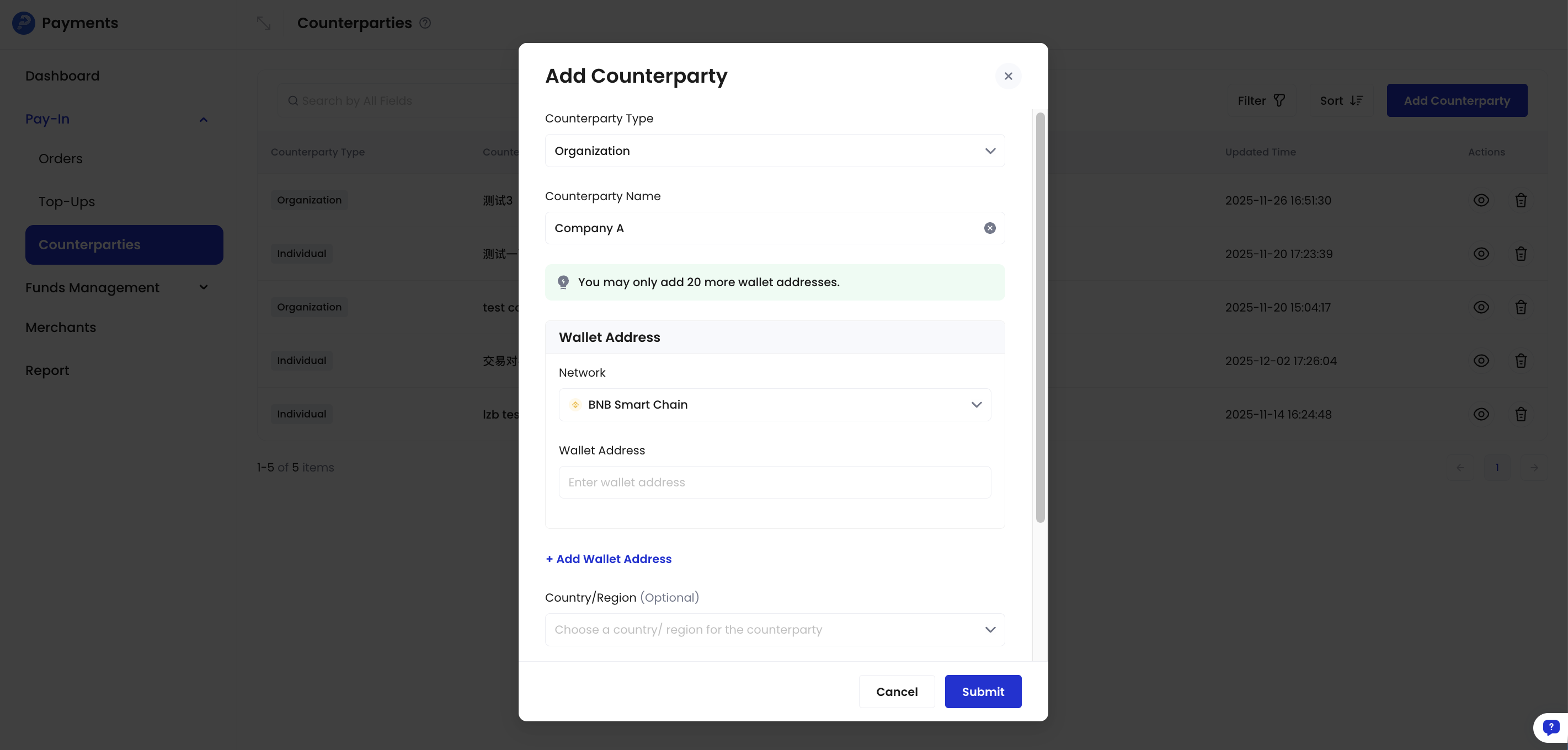 * **Counterparty Type**: Select Individual or Organization
* **Counterparty Name**: Enter a name to identify this counterparty
* **Wallet Addresses**: Enter the counterparty's wallet addresses. Multiple addresses are supported.
You can add multiple wallet addresses to a single counterparty, including multiple addresses on the same blockchain.
* **Network**: Select the blockchain network
* **Wallet Address**: Enter the wallet address
* **Country/Region** (optional): Select the counterparty's country/region
* **Email** (optional): Enter the counterparty's email address
* **Contact Address** (optional): Enter the counterparty's contact address
6. Click **Submit** and complete multi-factor authentication (MFA).
* **Counterparty Type**: Select Individual or Organization
* **Counterparty Name**: Enter a name to identify this counterparty
* **Wallet Addresses**: Enter the counterparty's wallet addresses. Multiple addresses are supported.
You can add multiple wallet addresses to a single counterparty, including multiple addresses on the same blockchain.
* **Network**: Select the blockchain network
* **Wallet Address**: Enter the wallet address
* **Country/Region** (optional): Select the counterparty's country/region
* **Email** (optional): Enter the counterparty's email address
* **Contact Address** (optional): Enter the counterparty's contact address
6. Click **Submit** and complete multi-factor authentication (MFA).