> ## Documentation Index
> Fetch the complete documentation index at: https://cobo.com/payments/llms.txt
> Use this file to discover all available pages before exploring further.
# Payment collection in order mode
**Disclaimer: This article contains AI translations and should only be used as reference.** Contact Cobo's support team through [help@cobo.com](mailto:help@cobo.com) if you have any questions.
Order mode is suitable for scenarios that require specifying a specific payment amount and time limit. In this mode, Cobo creates payment orders with the following characteristics:
* **Fixed amount**: The amount payable is specified when the order is created
* **Validity period**: Payers need to complete payment within the specified time
* **Exception handling**: Supports handling various exception situations, including:
* Canceling orders that have not been paid
* Initiating refunds for paid orders
* Handling payment exceptions such as overpayment, underpayment, and late payment
## Create order
You can create an order in two ways:
* Call [Create pay-in order](/payments/en/api-references/payment/create-pay-in-order) to directly create a payment order. After a successful call, you will receive information such as the payable amount and payment address. You will need to build the frontend page yourself, or you can integrate Web3 payment capabilities using the [React SDK / Vue SDK](/payments/en/guides/payment-toolkit).
* Call [Create order link](/payments/en/api-references/payment/create-order-link) to generate a payment link. This link will direct users to a payment page provided by Cobo, where they can create an order and complete payment without you needing to develop the front-end interaction. You can also embed this payment page into your website or application using an iFrame.
### Prerequisites
You have completed all the steps mentioned in [Preparation](/payments/en/guides/preparation).
### Implementation steps
The following diagram shows the complete interaction process between payers, merchants, and Cobo during the order payment process:
```mermaid theme={null}
sequenceDiagram
participant Payer
participant Merchant
participant Cobo
Payer ->> Merchant: Determine token and chain for payment
Merchant ->> Cobo: ① Query exchange rate
Cobo ->> Merchant: Return exchange rate
Merchant ->> Payer: Return estimated amount payable
Payer ->> Merchant: Confirm payment order
Merchant ->> Cobo: ② Request to create payment order
Cobo ->> Merchant: Return receiving address and amount payable
Cobo ->> Cobo: Address deposit polling
Payer ->> Cobo: Make payment to address
Cobo ->> Cobo: Compliance check
Cobo ->> Merchant: ③ Push order-related webhook events
Merchant ->> Payer: Update product order status
```
When creating an order, you must choose **one** of the following two amount parameter combinations based on your business model:
* \*\*Option 1: \*\*The original order is priced in fiat currency, and you collect payment in cryptocurrency
* **Required**: `pricing_currency`, `pricing_amount`, `payable_currency`
* **Not required**: `payable_amount`
* \*\*Option 2: \*\*The original order is priced in cryptocurrency, and you collect the payment directly in the same cryptocurrency
* **Required**: `payable_currency`, `payable_amount`
* **Not required**: `pricing_currency`, `pricing_amount`
Requests that include parameters from both options, or that do not conform to either combination, will be rejected.
You may refer to the following definitions of order amount–related fields:
* **Pricing Currency (**`pricing_currency`**)**:\
The fiat currency used to price the goods. For supported fiat currencies, please refer to [Supported Currencies and Blockchains](/payments/en/guides/supported-chains-and-tokens).\
This field is optional and is not required if your goods are priced in cryptocurrency.
* **Pricing Amount (**`pricing_amount`**)**:\
The fiat price of the goods, denominated in the currency specified by `pricing_currency`.\
This field is optional and is not required if your goods are priced in cryptocurrency.
* **Payable Currency (**`payable_currency`**)**:\
The cryptocurrency the payer needs to pay. For supported cryptocurrencies, please refer to [Supported Currencies and Blockchains](/payments/en/guides/supported-chains-and-tokens).
* **Payable Amount (**`payable_amount`**)**:\
The amount of cryptocurrency the payer needs to pay, denominated in the currency specified by `payable_currency`.\
This field is optional:
* If `payable_amount` is specified, the system will use this value directly as the amount the payer needs to pay.
* If `payable_amount` is not specified, the system will calculate the payable amount using the real-time exchange rate:\
**Payable Amount = (Order Amount + Developer Fee) / Exchange Rate**.\
The exchange rate is based on the rate returned by the [Get exchange rate](/payments/en/api-references/payment/get-exchange-rate) operation at the time the order is created.
* **Developer Fee (**`fee_amount`**)**:\
If you are a platform serving multiple downstream merchants and need to distribute revenue between yourself and those merchants, you can configure this fee to achieve revenue sharing.\
This fee is denominated in the cryptocurrency specified by `payable_currency`.\
The actual developer fee received is calculated as:\
Actual Developer Fee = (Configured Developer Fee / Payable Amount) × Actual Collected Amount. For more details, please refer to [Accounts and Fund Allocation](/payments/en/guides/amounts-and-balances).
If you are a merchant (serving users directly), you typically do not need to set the developer fee.
The table below shows how the payable amount is determined in four different configuration scenarios:
| | Scenario 1 | Scenario 2 |
| :------------------------ | :----------------------------------------------------------------------------------------------------- | :--------------------------------------------------------------------------------------- |
| Scenario Description | - Pricing amount in fiat currency
- Developer fee not set
- System calculates payable amount | - Pricing amount in cryptocurrency
- Developer fee set
- Custom payable amount |
| `pricing_currency` | `"USD"` | Not set |
| `pricing_amount` | `"100"` | Not set |
| `payable_currency` | `"ETH_USDT"` | `"ETH_USDT"` |
| `payable_amount` | Not set | `"104.08"` |
| `fee_amount` | `"0"` or not set | `"2"` |
| Real-time exchange rate | 0.99 | N/A (custom payable amount used) |
| Calculation Process | (100 + 0) / 0.99 | Directly uses specified payable\_amount |
| Final payable amount | `"101.01"` | `"104.08"` |
| Developer Fee Calculation | 0 | 2/104.08\*104.08 |
| Final Developer Fee | `"0"` | `"0"` |
You can call [Create order link](/payments/en/api-references/payment/create-order-link) to create an order payment link. The payment page is provided by Cobo, and users can access the link directly to complete the order payment. You can also embed the page into your existing website through an iFrame. For details, see [Create order link](/payments/en/guides/payment-link).
## Query order status
You can subscribe to the following webhook events to receive real-time update notifications of order status. Refer to [Webhook reference](/payments/en/guides/status-and-events) to understand the trigger time and returned data structure of each event.
* `payment.status.updated`
* `payment.transaction.late`
* `payment.transaction.completed`
You can also actively query order status through Payments App or Payments API.
1. Log in to Cobo Portal [development environment](https://portal.dev.cobo.com/login) or [production environment](https://portal.cobo.com/login).
2. In the left navigation bar, click **Apps**, then click the **Payments** card to launch the App.
3. In the App's left navigation bar, click **Pay-In** > **Orders**. You can view detailed information of all orders on this page, such as order ID, merchant information, payment amount, order status, etc.
4. After the payer completes payment and the transaction passes compliance screening, the order status will change to **Completed**.
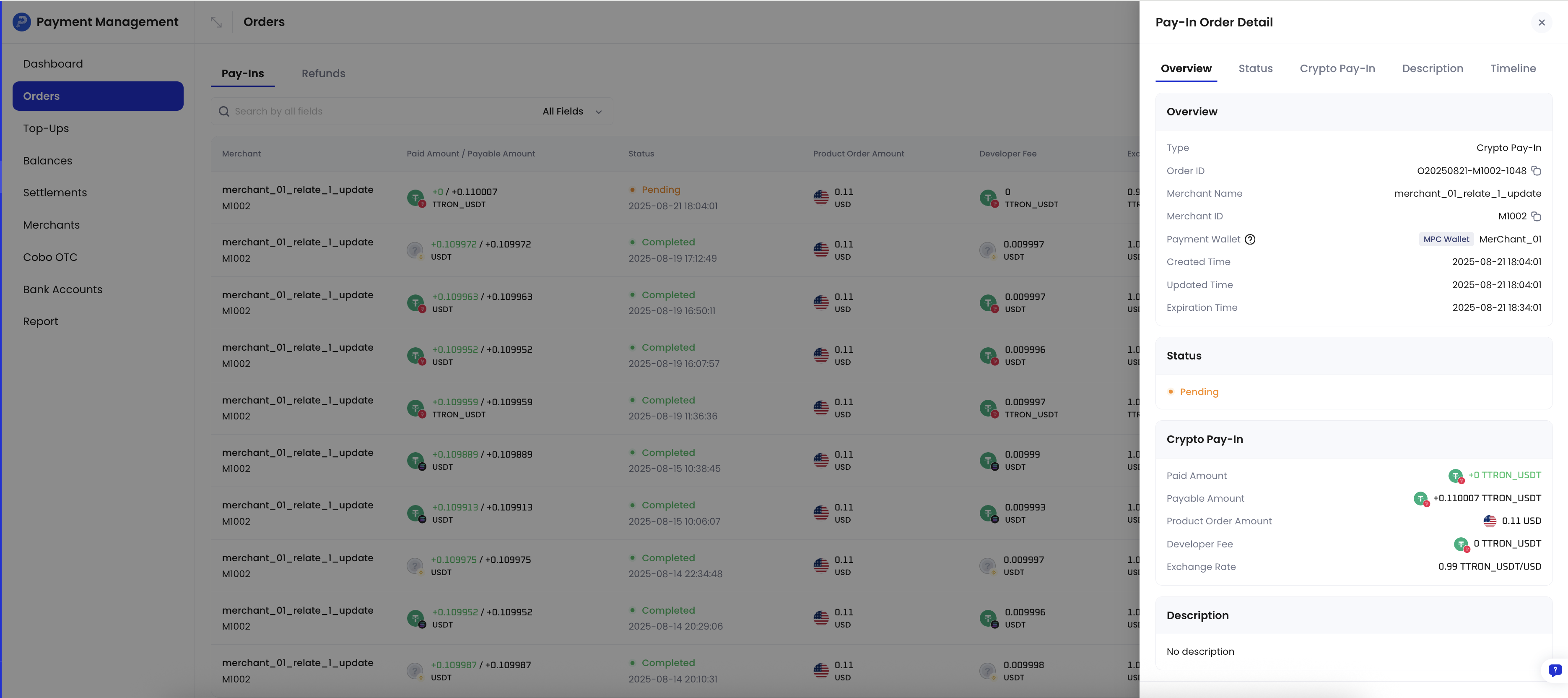 You can call [Get pay-in order information](/payments/en/api-references/payment/get-pay-in-order-information) to query the status of a single payment order, or call [List all pay-in orders](/payments/en/api-references/payment/list-all-pay-in-orders) to query the status of all orders.
## Exception situations
In order mode, you may need to handle the following exception situations.
### Cancel payment order
When a payment order is in the `Pending` status, that is, no deposit transaction has been detected yet, you can call [Update pay-in order](/payments/en/api-references/payment/update-pay-in-order) to cancel the order. After cancellation, the order status will change to `Expired`.
### Overpayment, underpayment, and late payment
The following three exception situations may occur during the payment process:
| Exception situation | Description | Impact |
| ------------------- | --------------------------------------------------------------------------------------------------- | -------------------------------------------------------------------------------------------------------------- |
| **Overpayment** | Within the order validity period, the payer's actual payment amount exceeds the payable amount | The final order status is `Completed`. |
| **Underpayment** | Within the order validity period, the payer's actual payment amount is less than the amount payable | The order status is `Underpaid` (final state). |
| **Late payment** | The payer makes the first or subsequent payment after the order expires | Does not change the order status. Each late payment will trigger one `payment.transaction.late` webhook event. |
[Accounts and fund allocation](/payments/en/guides/amounts-and-balances) details how Cobo handles funds in the case of overpayment, underpayment, and late payment.
### Handle refund requests
You can initiate a refund order through Payments App or Payments API to refund funds to the payer. The following diagram shows the interaction process between payers, merchants, and Cobo during the refund process.
You can call [Get pay-in order information](/payments/en/api-references/payment/get-pay-in-order-information) to query the status of a single payment order, or call [List all pay-in orders](/payments/en/api-references/payment/list-all-pay-in-orders) to query the status of all orders.
## Exception situations
In order mode, you may need to handle the following exception situations.
### Cancel payment order
When a payment order is in the `Pending` status, that is, no deposit transaction has been detected yet, you can call [Update pay-in order](/payments/en/api-references/payment/update-pay-in-order) to cancel the order. After cancellation, the order status will change to `Expired`.
### Overpayment, underpayment, and late payment
The following three exception situations may occur during the payment process:
| Exception situation | Description | Impact |
| ------------------- | --------------------------------------------------------------------------------------------------- | -------------------------------------------------------------------------------------------------------------- |
| **Overpayment** | Within the order validity period, the payer's actual payment amount exceeds the payable amount | The final order status is `Completed`. |
| **Underpayment** | Within the order validity period, the payer's actual payment amount is less than the amount payable | The order status is `Underpaid` (final state). |
| **Late payment** | The payer makes the first or subsequent payment after the order expires | Does not change the order status. Each late payment will trigger one `payment.transaction.late` webhook event. |
[Accounts and fund allocation](/payments/en/guides/amounts-and-balances) details how Cobo handles funds in the case of overpayment, underpayment, and late payment.
### Handle refund requests
You can initiate a refund order through Payments App or Payments API to refund funds to the payer. The following diagram shows the interaction process between payers, merchants, and Cobo during the refund process.
```mermaid theme={null}
sequenceDiagram
participant Payer
participant Merchant
participant Cobo
Payer ->> Merchant: Apply for refund
Merchant ->> Cobo: Request to create refund order
Pass in refund amount, receiving address, etc.
Cobo ->> Payer: Refund to receiving address
Cobo ->> Merchant: Push refund order-related webhook events
Merchant ->> Payer: Refund status update
```
#### Create refund order
1. Log in to Cobo Portal [development environment](https://portal.dev.cobo.com/login) or [production environment](https://portal.cobo.com/login).
2. In the left navigation bar, click **Apps**, then click the **Payments** card to launch the App.
3. In the App's left navigation bar, click **Pay-In** > **Orders**.
4. Select the target order, then click the **View Details** button on the right.
5. On the order details page, click the **Refund** button.
6. In the pop-up form:
* Select the source of the refund amount. You can choose **Merchant balance** or **Developer balance**.
* Enter the refund amount. This amount must not exceed the corresponding merchant balance or developer balance.
* (Optional) Enter the developer fee amount. This fee will be deducted from the refund amount and credited to the developer balance. For a detailed description of developer fees, refer to [Accounts and fund allocation](/payments/en/guides/amounts-and-balances).
* Enter the receiving address. You can click **Use original payment address**, and the system will automatically fill in the original payment address for this order. If you want to refund to another address, you can also manually enter the target address.
7. Click **Preview** to confirm that all information is correct, then click **Submit** to create the refund order.
Call [Create refund order](/payments/en/api-references/payment/create-refund-order) to create a refund order. When creating a refund order, pay attention to the following points:
* You need to specify the source of the refund amount through the `refund_type` field. When you select `Merchant`, Cobo will deduct the refund amount from the merchant balance; when you select `Psp`, Cobo will deduct the refund amount from the developer balance.
* Since refunds involve transfers to external addresses, Cobo will charge related fees. You can charge an appropriate fee as compensation through the developer fee field (`merchant_fee_amount`). After specifying this field:
* If you choose to deduct the refund amount from the merchant balance, Cobo will transfer the developer fee from the merchant balance to the developer balance. The funds will remain at the original address and no actual transfer will occur.
* The actual refund amount received by the payer = specified refund amount - developer fee (i.e., `payable_amount` - `merchant_fee_amount`).
* Cobo will validate the refund amount. If the refund amount is less than the developer fee, the request will be rejected and the reason for failure will be returned, because in this case the payer cannot actually receive any refund.
For more information about developer fees, refer to [Accounts and fund allocation](/payments/en/guides/amounts-and-balances).
#### Query refund order status
You can subscribe to the `payment.refund.status.updated` event to receive real-time updates on refund order status. Refer to [Webhook reference](/payments/en/guides/status-and-events) to understand the detailed trigger conditions and returned data structure of each event.
You can also actively query refund order status through Payments App or Payments API.
1. Log in to Cobo Portal [development environment](https://portal.dev.cobo.com/login) or [production environment](https://portal.cobo.com/login).
2. In the left navigation bar, click **Apps**, then click the **Payments** card to launch the App.
3. In the App's left navigation bar, click **Pay-In** > **Orders**.
4. Click the **Refunds** tab. In the refund order list, find the target order, then click the **View Details** button on the right.
5. View the order status on the refund order details page.
You can call [Get refund order information](/payments/en/api-references/payment/get-refund-order-information) to query the status of a single refund order, or call [List all refund orders](/payments/en/api-references/payment/list-all-refund-orders) to query the status of all refund orders.
### Compliance screening failure
When a transaction receives the `payment.transaction.failed` event , this indicates that the transaction has failed to pass compliance screening by Cobo KYT or Screening App. In this case, you need to follow these steps to handle it:
* If the transaction subsequently passes manual review:
* If the order has not expired: The funds will be counted towards the order's actual received amount, and the order status will be updated accordingly based on the actual received amount
* If the order has expired: The system will trigger the `payment.transaction.late` event, and all funds will be credited to the developer balance
* If the transaction ultimately fails manual review:
* The funds will be frozen and will not be counted towards the order's actual received amount
* The order status will remain unchanged
* The payer needs to redeposit sufficient funds and pass compliance screening within the order validity period for the order to change to `Completed` status
For isolated or frozen funds:
* Cobo KYT: Please contact the Cobo support team through [help@cobo.com](mailto:help@cobo.com) for handling
* Screening App: You can evaluate and handle it yourself within the application
### Minimum Deposit Threshold
* To optimize your account costs and prevent situations where the collection fee exceeds the transaction value, a minimum deposit threshold is applied. Transactions with a value below **0.05 USDT** (or equivalent) will not be processed for automatic credit.\
*Note: If you need to manually recover accumulated funds below this threshold, please contact Cobo Support for assistance in extracting them from the consolidation addresses.*