> ## Documentation Index
> Fetch the complete documentation index at: https://cobo.com/payments/llms.txt
> Use this file to discover all available pages before exploring further.
# Crypto payouts
**Disclaimer: This article contains AI translations and should only be used as reference.** Contact Cobo's support team through [help@cobo.com](mailto:help@cobo.com) if you have any questions.
This document introduces how to transfer the cryptocurrency you received to an external cryptocurrency address.
## 1. Create crypto payout request
You can create crypto payout requests through Payments App or Payments API.
1. Log in to Cobo Portal [development environment](https://portal.dev.cobo.com/login) or [production environment](https://portal.cobo.com/login).
2. In the left navigation bar, click **Apps**, then click the **Payments** card to launch the App.
3. In the App's left navigation bar, click **Funds Management** > **Payouts**.
4. You can choose to withdraw from **Merchant balance** or **Developer balance**. In this example, we choose to withdraw from the merchant balance. Click the **Payout** button on the **Merchant Balance** card.
5. In the pop-up window, select **Crypto Payout**.
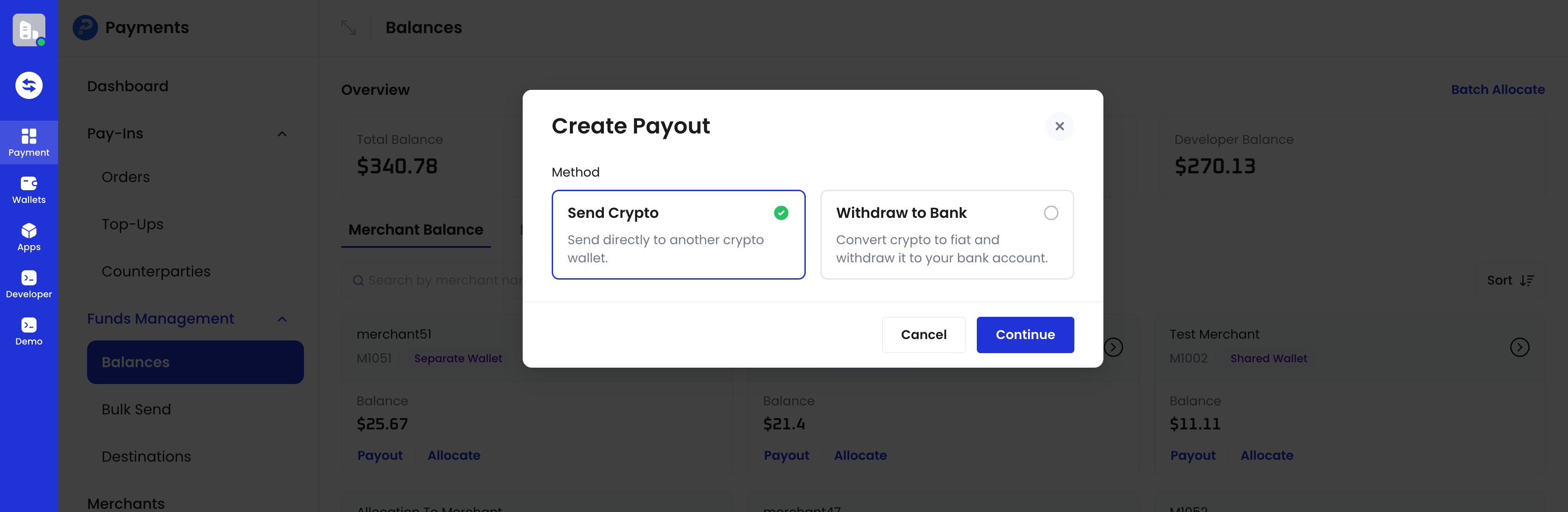 6. Fill in the transfer information, including token, network, merchant name, amount, and receiving address.
If you have enabled the **Use Destinations as Payout Whitelist** toggle in **Destinations**, you can only transfer to registered destinations. For more details, see [Destinations](/payments/en/guides/destinations)
7. **Auto-Select Sources**:
* When enabled, you only need to enter the **total payout amount**, and the system automatically allocates the payout across available token balances in your wallet.
* When disabled, you must manually specify the payout amount for each token. This option is enabled by default and can be turned off if needed.
8. **Cross-chain payout**:
When paying out **USDT or USDC on a specific network**, the system can use **USDT or USDC balances on other networks** in your wallet and bridge them before payout.
Currently, only **same-asset cross-chain payouts** are supported. Cross-asset conversion is not supported.
1. **Fees**:
Same-asset cross-chain payouts incur a processing fee, which is automatically calculated based on the payout amount.
2. **Example**:
Available balances in the source account:
* 150 USDT (Tron)
* 50 USDT (Ethereum)
If the total payout amount is **200 USDT (Tron)**, the system will bridge **50 USDT (Ethereum)**.
With a cross-chain fee of **10 USDT (Ethereum)**, the estimated amount received will be **190 USDT (Tron)**.
9. Follow the on-page prompts to confirm and submit the transfer request.
1. Before creating a transfer request, you can call [List merchant balances](/payments/en/api-references/payment/list-merchant-balances) or [Get developer balance](/payments/en/api-references/payment/get-developer-balance) to query merchant and developer balances respectively, to determine the maximum transferable amount.
2. Call [Create Payout](/payments/en/api-references/payment/create-payout) to create a transfer request.
**Basic parameters**
* `request_id`: The unique request ID you provide to track the transfer request
* `source_account`: Payment source account. When withdrawing funds from a merchant account, pass the merchant\_id; when withdrawing funds from a developer account, set to `developer`.
* `payout_channel`: Set to `Crypto` for crypto payouts
**Detail parameters (payout\_params & recipient\_info)**
| Schema | Related parameters |
| :------------------ | :-------------------- |
| **payout\_params** | `amount`, `token_id` |
| **recipient\_info** | `token_id`, `address` |
Crypto payouts require both `address` and `token_id` in **recipient\_info**.
**Parameter description:**
* `amount`: Cryptocurrency amount, provided as a decimal string. Trailing zeros in the fractional part do not count toward the limit, but once removed, no more than two digits may remain after the decimal point. For example, `100.500` is accepted (equivalent to `100.5`), while `100.567` is rejected rather than rounded, because three fractional digits remain once trailing zeros are removed.
* `token_id`: Cryptocurrency ID (such as `ETH_USDT`, `TRON_USDT`). When the `token_id` in **payout\_params** and **recipient\_info** have the same tokens but different chains, Cobo will automatically execute a cross-chain operation.
* `address`: The recipient cryptocurrency address.
## 2. Automatic fund collection
Before processing your payout, Cobo checks whether your total available account funds — across your merchant or developer balance — are sufficient to cover the requested amount.
This total-funds check is based on your account's ledger balance. For details about how this balance is calculated, see [Accounts and fund allocation](/payments/en/guides/amounts-and-balances#balances).
If the total funds are sufficient but part of that amount is still held at payment addresses (for example, addresses used to collect Order mode or Top-up mode payments) rather than already consolidated into your balance, Cobo automatically collects those funds as part of processing the payout. You do not need to submit a separate request to collect the funds first — this step runs automatically whenever a payout needs it.
While collection is in progress, the payout request remains in `Pending` status. If a collection attempt fails, Cobo automatically retries it; you do not need to resubmit the payout or take any manual action. If the payout remains `Pending` longer than expected, call [Get payout information](/payments/en/api-references/payment/get-payout-information) to requery its status.
This automatic collection happens as an internal step of the payout process. It is separate from the (deprecated) [Create forced sweep](/payments/en/api-references/payment/create-forced-sweep) and [List forced sweeps](/payments/en/api-references/payment/list-forced-sweeps) operations, which previously let you trigger fund collection manually and are no longer necessary.
## 3. Complete secondary confirmation, risk control review, and transaction signing
After creating a transfer request, based on your submission method, risk control settings, and other factors, you need to complete the following operations:
* Secondary confirmation: If you transfer through Payments App, you need to confirm the transfer request on Cobo Guard.
* Risk control review: If you have set transaction policies, reviewers may need to approve the transfer request on Cobo Guard.
* Transaction signing: If you are using MPC Wallets, Mobile Co-Signer or Server Co-Signer needs to sign to finally complete the transfer operation.
## 4. Follow up on transfer status
You can subscribe to the `payment.payout.status.updated` event to receive real-time updates on transfer status. Refer to [Webhook reference](/payments/en/guides/status-and-events) to understand the detailed trigger conditions and returned data structure of each event.
You can also actively query transfer request status through Payments App or Payments API.
1. Log in to Cobo Portal [development environment](https://portal.dev.cobo.com/login) or [production environment](https://portal.cobo.com/login).
2. In the left navigation bar, click **Apps**, then click the **Payments** card to launch the App.
3. In the App's left navigation bar, click **Funds Management** > **Balances**.
4. On the **Merchant Account** or **Developer Account** details page, open the **Recent Activities – Payout - Crypto Payout** tab to view the status and details of all payout requests.
You can call the following API operations to query transfer request status:
* [Get payout information ](/payments/en/api-references/payment/get-payout-information) - Query detailed information about a single transfer request
* [List all payouts](/payments/en/api-references/payment/list-all-payouts) - Query detailed information about all transfer requests
6. Fill in the transfer information, including token, network, merchant name, amount, and receiving address.
If you have enabled the **Use Destinations as Payout Whitelist** toggle in **Destinations**, you can only transfer to registered destinations. For more details, see [Destinations](/payments/en/guides/destinations)
7. **Auto-Select Sources**:
* When enabled, you only need to enter the **total payout amount**, and the system automatically allocates the payout across available token balances in your wallet.
* When disabled, you must manually specify the payout amount for each token. This option is enabled by default and can be turned off if needed.
8. **Cross-chain payout**:
When paying out **USDT or USDC on a specific network**, the system can use **USDT or USDC balances on other networks** in your wallet and bridge them before payout.
Currently, only **same-asset cross-chain payouts** are supported. Cross-asset conversion is not supported.
1. **Fees**:
Same-asset cross-chain payouts incur a processing fee, which is automatically calculated based on the payout amount.
2. **Example**:
Available balances in the source account:
* 150 USDT (Tron)
* 50 USDT (Ethereum)
If the total payout amount is **200 USDT (Tron)**, the system will bridge **50 USDT (Ethereum)**.
With a cross-chain fee of **10 USDT (Ethereum)**, the estimated amount received will be **190 USDT (Tron)**.
9. Follow the on-page prompts to confirm and submit the transfer request.
1. Before creating a transfer request, you can call [List merchant balances](/payments/en/api-references/payment/list-merchant-balances) or [Get developer balance](/payments/en/api-references/payment/get-developer-balance) to query merchant and developer balances respectively, to determine the maximum transferable amount.
2. Call [Create Payout](/payments/en/api-references/payment/create-payout) to create a transfer request.
**Basic parameters**
* `request_id`: The unique request ID you provide to track the transfer request
* `source_account`: Payment source account. When withdrawing funds from a merchant account, pass the merchant\_id; when withdrawing funds from a developer account, set to `developer`.
* `payout_channel`: Set to `Crypto` for crypto payouts
**Detail parameters (payout\_params & recipient\_info)**
| Schema | Related parameters |
| :------------------ | :-------------------- |
| **payout\_params** | `amount`, `token_id` |
| **recipient\_info** | `token_id`, `address` |
Crypto payouts require both `address` and `token_id` in **recipient\_info**.
**Parameter description:**
* `amount`: Cryptocurrency amount, provided as a decimal string. Trailing zeros in the fractional part do not count toward the limit, but once removed, no more than two digits may remain after the decimal point. For example, `100.500` is accepted (equivalent to `100.5`), while `100.567` is rejected rather than rounded, because three fractional digits remain once trailing zeros are removed.
* `token_id`: Cryptocurrency ID (such as `ETH_USDT`, `TRON_USDT`). When the `token_id` in **payout\_params** and **recipient\_info** have the same tokens but different chains, Cobo will automatically execute a cross-chain operation.
* `address`: The recipient cryptocurrency address.
## 2. Automatic fund collection
Before processing your payout, Cobo checks whether your total available account funds — across your merchant or developer balance — are sufficient to cover the requested amount.
This total-funds check is based on your account's ledger balance. For details about how this balance is calculated, see [Accounts and fund allocation](/payments/en/guides/amounts-and-balances#balances).
If the total funds are sufficient but part of that amount is still held at payment addresses (for example, addresses used to collect Order mode or Top-up mode payments) rather than already consolidated into your balance, Cobo automatically collects those funds as part of processing the payout. You do not need to submit a separate request to collect the funds first — this step runs automatically whenever a payout needs it.
While collection is in progress, the payout request remains in `Pending` status. If a collection attempt fails, Cobo automatically retries it; you do not need to resubmit the payout or take any manual action. If the payout remains `Pending` longer than expected, call [Get payout information](/payments/en/api-references/payment/get-payout-information) to requery its status.
This automatic collection happens as an internal step of the payout process. It is separate from the (deprecated) [Create forced sweep](/payments/en/api-references/payment/create-forced-sweep) and [List forced sweeps](/payments/en/api-references/payment/list-forced-sweeps) operations, which previously let you trigger fund collection manually and are no longer necessary.
## 3. Complete secondary confirmation, risk control review, and transaction signing
After creating a transfer request, based on your submission method, risk control settings, and other factors, you need to complete the following operations:
* Secondary confirmation: If you transfer through Payments App, you need to confirm the transfer request on Cobo Guard.
* Risk control review: If you have set transaction policies, reviewers may need to approve the transfer request on Cobo Guard.
* Transaction signing: If you are using MPC Wallets, Mobile Co-Signer or Server Co-Signer needs to sign to finally complete the transfer operation.
## 4. Follow up on transfer status
You can subscribe to the `payment.payout.status.updated` event to receive real-time updates on transfer status. Refer to [Webhook reference](/payments/en/guides/status-and-events) to understand the detailed trigger conditions and returned data structure of each event.
You can also actively query transfer request status through Payments App or Payments API.
1. Log in to Cobo Portal [development environment](https://portal.dev.cobo.com/login) or [production environment](https://portal.cobo.com/login).
2. In the left navigation bar, click **Apps**, then click the **Payments** card to launch the App.
3. In the App's left navigation bar, click **Funds Management** > **Balances**.
4. On the **Merchant Account** or **Developer Account** details page, open the **Recent Activities – Payout - Crypto Payout** tab to view the status and details of all payout requests.
You can call the following API operations to query transfer request status:
* [Get payout information ](/payments/en/api-references/payment/get-payout-information) - Query detailed information about a single transfer request
* [List all payouts](/payments/en/api-references/payment/list-all-payouts) - Query detailed information about all transfer requests