> ## Documentation Index
> Fetch the complete documentation index at: https://cobo.com/payments/llms.txt
> Use this file to discover all available pages before exploring further.
# Destinations
**Disclaimer: This article contains AI translations and should only be used as reference.** Contact Cobo's support team through [help@cobo.com](mailto:help@cobo.com) if you have any questions.
This guide explains how to integrate and manage **Destinations** through the Cobo Payment API.
Destinations are receiving entities used for payouts and bulk sends, and can aggregate multiple wallet addresses or multiple bank accounts for off-ramp.
Core capabilities:
* **Destination management**: Consolidate cryptocurrency wallet addresses and fiat bank accounts under a single entity.
* **Payout whitelist**: Use destinations as a whitelist for crypto payouts, restricting fund transfers to approved wallet addresses only.
* **Merchant association**: Associate each merchant with a specific destination for easier payouts. Note that direct off-ramp settlement to merchant bank accounts is not currently supported.
* **Risk control**: With Cobo Premium integrated, you can run address risk screening and identify risky wallet addresses before adding destinations or initiating payouts.
* For off-ramp, you need to register a bank account with a name that matches your company's legal entity name, and it must be approved by Cobo's operations team before it can be used for payouts.
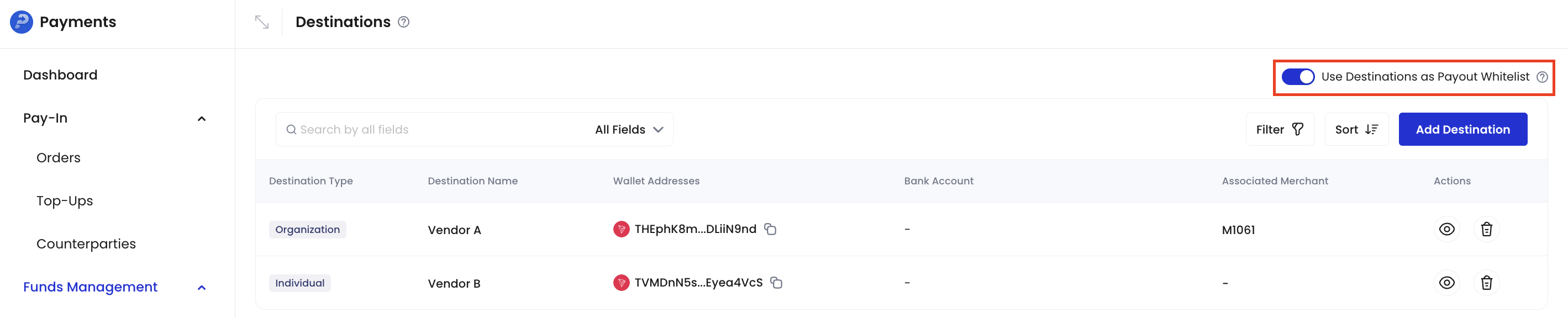
* For crypto payouts, you can flexibly manage the allowed transfer addresses through the **Use Destinations as Payout Whitelist** toggle:
* If enabled, transfers are only allowed to registered destinations (wallet addresses);
* If disabled, you can freely enter destination addresses or select from registered destinations.
 ## Add a destination
You can add destinations in the Payments App, including wallet addresses and bank accounts.
### Permission requirements
Only **Payment Admin** and **Admin** roles have permissions to create, edit, and delete destinations. **Payment Member** has view-only access and cannot make modifications.
### Steps
1. Log in to Cobo Portal [development environment](https://portal.dev.cobo.com/login) or [production environment](https://portal.cobo.com/login).
2. In the left navigation bar, click **Apps**, then click the **Payments** card to launch the App.
3. In the App's left navigation bar, click **Funds Management** > **Destinations**.
4. Click the **Add Destination** button in the upper right corner.
5. In the pop-up form, fill in the wallet address and/or bank account information to be registered.
## Add a destination
You can add destinations in the Payments App, including wallet addresses and bank accounts.
### Permission requirements
Only **Payment Admin** and **Admin** roles have permissions to create, edit, and delete destinations. **Payment Member** has view-only access and cannot make modifications.
### Steps
1. Log in to Cobo Portal [development environment](https://portal.dev.cobo.com/login) or [production environment](https://portal.cobo.com/login).
2. In the left navigation bar, click **Apps**, then click the **Payments** card to launch the App.
3. In the App's left navigation bar, click **Funds Management** > **Destinations**.
4. Click the **Add Destination** button in the upper right corner.
5. In the pop-up form, fill in the wallet address and/or bank account information to be registered.
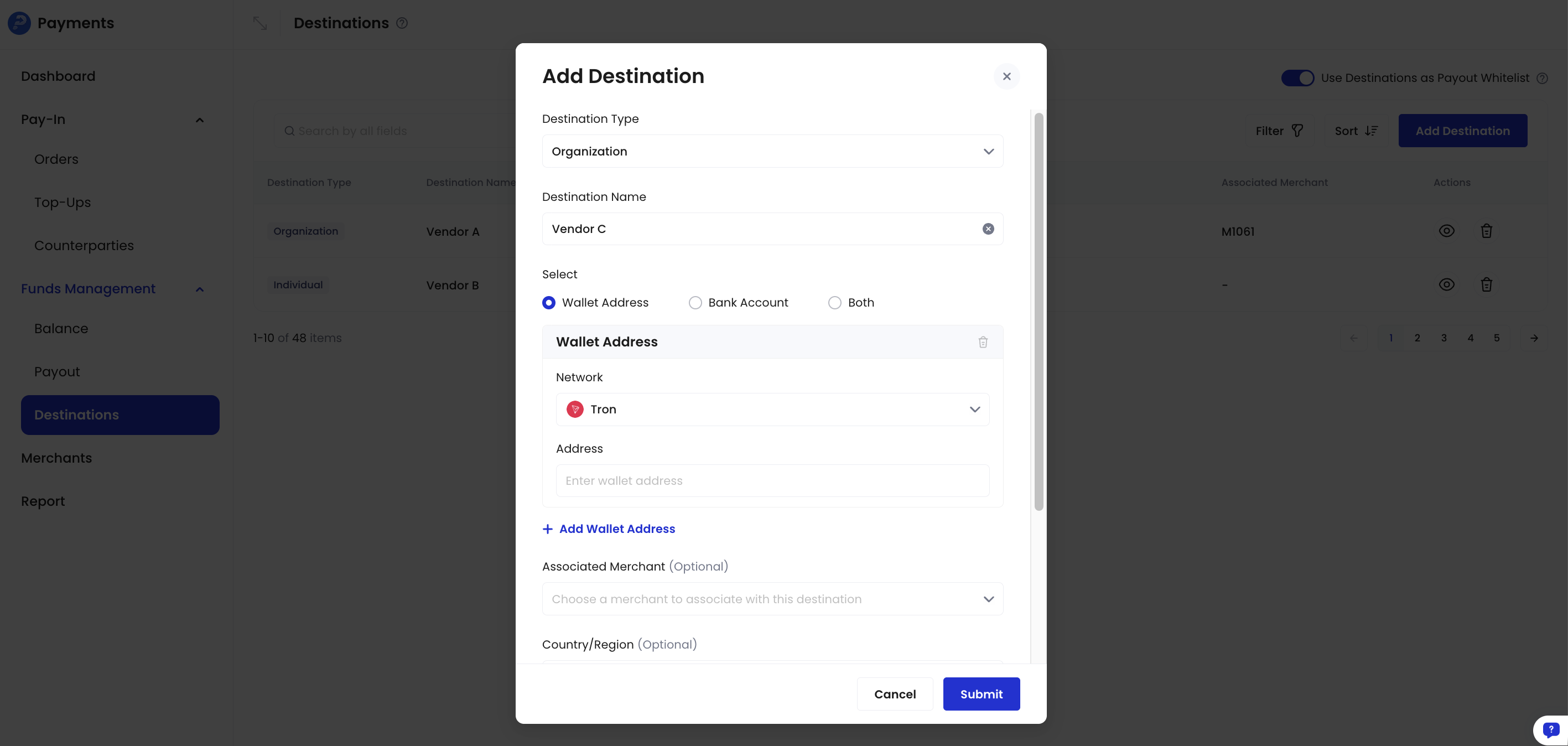 * If registering a wallet address, you can optionally associate it with a specific merchant. Once associated, the system will automatically select this wallet address as the destination when initiating payouts for that merchant, improving operational convenience and accuracy.
* When adding a bank account, ensure the account name matches your company's legal entity name.
6. Click **Submit** and complete the identity verification.
7. If you registered a bank account, you need to wait for approval from Cobo's operations team before using it for payouts.
* If registering a wallet address, you can optionally associate it with a specific merchant. Once associated, the system will automatically select this wallet address as the destination when initiating payouts for that merchant, improving operational convenience and accuracy.
* When adding a bank account, ensure the account name matches your company's legal entity name.
6. Click **Submit** and complete the identity verification.
7. If you registered a bank account, you need to wait for approval from Cobo's operations team before using it for payouts.