> ## Documentation Index
> Fetch the complete documentation index at: https://cobo.com/payments/llms.txt
> Use this file to discover all available pages before exploring further.
# Payment collection in top-up mode
**Disclaimer: This article contains AI translations and should only be used as reference.** Contact Cobo's support team through [help@cobo.com](mailto:help@cobo.com) if you have any questions.
In top-up mode, Cobo generates a fixed top-up address for each payer, and payers can top up any amount to that address at any time. The following diagram shows the interaction process between payers, merchants (you), and Cobo:
```mermaid theme={null}
sequenceDiagram
participant Payer
participant Merchant
participant Cobo
Payer ->> Merchant: Request payment
Merchant ->> Cobo: ① Get the payer's top-up address
Cobo ->> Merchant: Return top-up address
Cobo ->> Cobo: Address deposit polling
Merchant ->> Payer: Display top-up address
Payer ->> Cobo: Transfer funds to address
Cobo ->> Cobo: Compliance check
Cobo ->> Merchant: ② Push webhook events, notify successful top-up
Merchant ->> Payer: Notify successful top-up
```
## Get top-up address
You can get top-up addresses through Payments App or Payments API. After providing the top-up address to the payer, the payer can top up any amount to that address at any time.
### Prerequisites
You have completed all the steps mentioned in [Preparation](/payments/en/guides/preparation).
### Operation steps
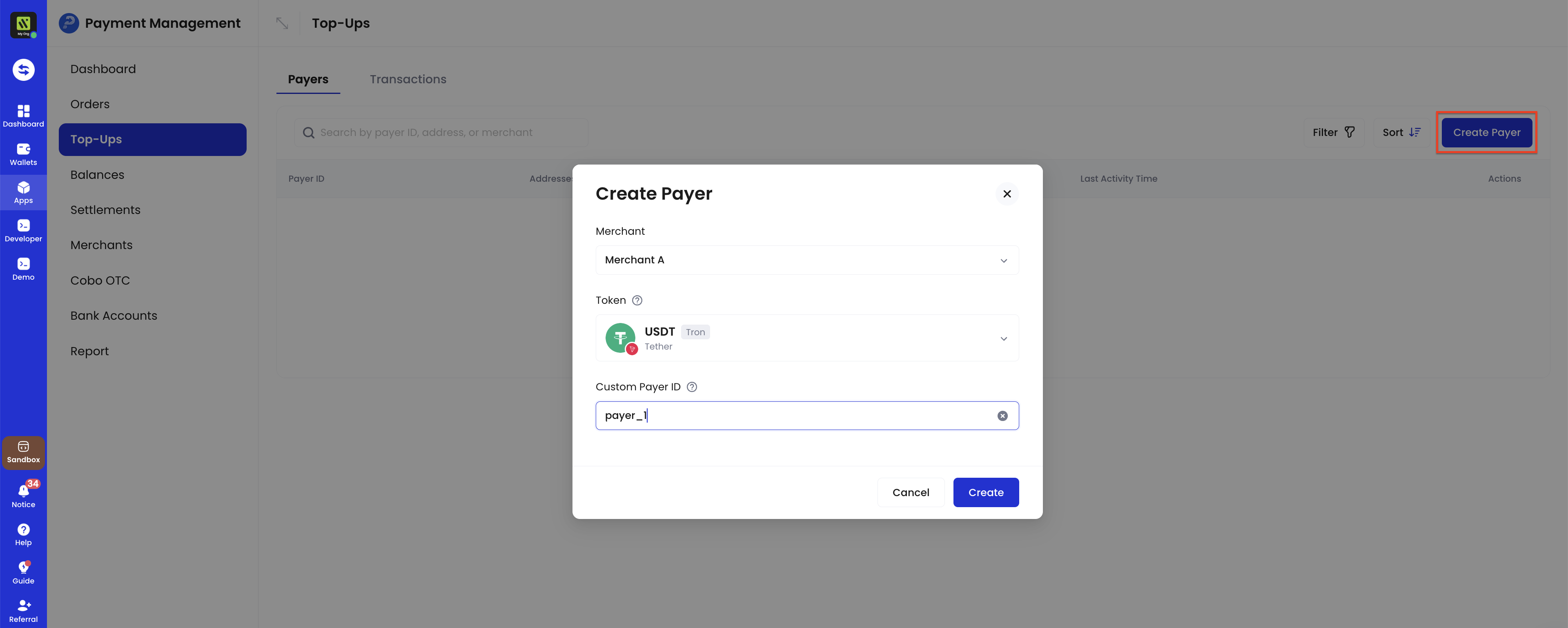
#### 1. Create payer
You need to create a payer first, then get the top-up address corresponding to that payer:
1. Log in to Cobo Portal [development environment](https://portal.dev.cobo.com/login) or [production environment](https://portal.cobo.com/login).
2. In the left navigation bar, click **Apps**, then click the **Payments** card to launch the App.
3. In the App's left navigation bar, click **Pay-In** > **Top-Ups**.
4. Click the **Create Payer** button in the upper right corner.
5. In the pop-up form:
* Select a merchant. The payments made by this payer will belong to this merchant.
* Select a token and network. Cobo will create a dedicated top-up address on that network for this payer. After creating the payer, you can also create more top-up addresses on other networks for this payer to support multi-chain top-ups.
* Enter a custom payer ID. This ID needs to be the unique identifier for this payer in your system.
6. Click **Create** to complete payer creation.
 #### 2. Get top-up address
1. In the payer list, find the target payer, then click the **View Address** button on the right.
#### 2. Get top-up address
1. In the payer list, find the target payer, then click the **View Address** button on the right.
 2. You can view the addresses already created in the address list. If you want to add addresses on other chains, you can click the **Create Address** button to create them.
 3. Provide the required top-up address to the payer to complete payment.
1. Call [Create/Get top-up address](/payments/en/api-references/payment/createget-top-up-address) to create a top-up address. Key parameters in the request include:
* **Merchant ID** (`merchant_id`): The unique identifier for the merchant in the Cobo system, assigned by Cobo.
* **Custom payer ID** (`custom_payer_id`): The unique identifier for the payer in your system.
* **Token ID** (`token_id`): Specifies the cryptocurrency and blockchain network that the top-up address needs to support.
2. If you need to create top-up addresses for multiple payers in batches, you can call [Batch create top-up addresses](/payments/en/api-references/payment/batch-create-top-up-addresses).
3. **Configure top-up event listening**: Receive event notifications related to top-ups through webhooks. For details, refer to [Events and status](/payments/en/guides/status-and-events).
## Get top-up mode related events
You can subscribe to the following webhook events to receive real-time update notifications for top-up addresses and top-up transactions. Refer to [Webhook reference](/payments/en/guides/status-and-events) to understand the trigger time and returned data structure of each event.
* `payment.transaction.created`
* `payment.transaction.completed`
You can also query all top-up transactions for each payer in the following ways:
* **Payments App**: In the App's left navigation bar, click **Pay-In** > **Top-Ups**. In the payer list, find the target payer and click the **View Transaction** button on the right to view all top-up records for that payer.
* **Payments API**: Call [List payers](/payments/en/api-references/payment/list-payers) to get detailed information about all payers and their top-up transactions.
## Exception handling
In top-up mode, you may need to handle the following exception situations.
### Top-up address replacement
You can actively replace a payer's top-up address. Cobo will also automatically replace top-up addresses in specific situations.
#### Actively replace address
When you need to replace a top-up address (for example, due to business changes, internal risk assessment, or other business needs), you can create a new address through Payments App or Payments API.
* Payments App: In the payer list, find the target payer, then click the **View Address** button on the right. In the address list, click the **Create Address** button to create.
* Payments API: Call [Update top-up address](/payments/en/api-references/payment/update-top-up-address) to create a new address.
For a single payer, the address can be replaced a maximum of 10 times. Exceeding the limit will result in an API request error.
#### Impact after address replacement
After address replacement, be sure to promptly notify the payer to use the new address for top-ups.
* **Transaction monitoring**: Cobo will continue to monitor transaction activity at the old address, and corresponding transactions will trigger corresponding webhook notifications.
* **Fund handling**: The association between this address and the merchant still exists. According to the original configuration, received funds will be allocated to the corresponding merchant balance, and if the merchant has a developer fee rate configured, the corresponding proportion of funds will also be allocated to the developer balance.
* **Address query**: You can view all addresses that the payer has been bound to in history on Payments App.
### Compliance screening failure
When a transaction receives the `payment.transaction.failed` event , this indicates that the transaction has failed to pass compliance screening by Cobo KYT or Screening App. In this case, you need to follow these steps to handle it:
* If the transaction subsequently passes manual review: The funds will be counted towards the top-up amount.
* If the transaction ultimately fails manual review: The funds will be frozen and will not be counted towards the top-up amount
For isolated or frozen funds:
* Cobo KYT: Please contact the Cobo support team through [help@cobo.com](mailto:help@cobo.com) for handling
* Screening App: You can evaluate and handle it yourself within the application
### Minimum Deposit Threshold
* To optimize your account costs and prevent situations where the collection fee exceeds the transaction value, a minimum deposit threshold is applied. Transactions with a value below **0.05 USDT** (or equivalent) will not be processed for automatic credit.\
*Note: If you need to manually recover accumulated funds below this threshold, please contact Cobo Support for assistance in extracting them from the consolidation addresses.*
3. Provide the required top-up address to the payer to complete payment.
1. Call [Create/Get top-up address](/payments/en/api-references/payment/createget-top-up-address) to create a top-up address. Key parameters in the request include:
* **Merchant ID** (`merchant_id`): The unique identifier for the merchant in the Cobo system, assigned by Cobo.
* **Custom payer ID** (`custom_payer_id`): The unique identifier for the payer in your system.
* **Token ID** (`token_id`): Specifies the cryptocurrency and blockchain network that the top-up address needs to support.
2. If you need to create top-up addresses for multiple payers in batches, you can call [Batch create top-up addresses](/payments/en/api-references/payment/batch-create-top-up-addresses).
3. **Configure top-up event listening**: Receive event notifications related to top-ups through webhooks. For details, refer to [Events and status](/payments/en/guides/status-and-events).
## Get top-up mode related events
You can subscribe to the following webhook events to receive real-time update notifications for top-up addresses and top-up transactions. Refer to [Webhook reference](/payments/en/guides/status-and-events) to understand the trigger time and returned data structure of each event.
* `payment.transaction.created`
* `payment.transaction.completed`
You can also query all top-up transactions for each payer in the following ways:
* **Payments App**: In the App's left navigation bar, click **Pay-In** > **Top-Ups**. In the payer list, find the target payer and click the **View Transaction** button on the right to view all top-up records for that payer.
* **Payments API**: Call [List payers](/payments/en/api-references/payment/list-payers) to get detailed information about all payers and their top-up transactions.
## Exception handling
In top-up mode, you may need to handle the following exception situations.
### Top-up address replacement
You can actively replace a payer's top-up address. Cobo will also automatically replace top-up addresses in specific situations.
#### Actively replace address
When you need to replace a top-up address (for example, due to business changes, internal risk assessment, or other business needs), you can create a new address through Payments App or Payments API.
* Payments App: In the payer list, find the target payer, then click the **View Address** button on the right. In the address list, click the **Create Address** button to create.
* Payments API: Call [Update top-up address](/payments/en/api-references/payment/update-top-up-address) to create a new address.
For a single payer, the address can be replaced a maximum of 10 times. Exceeding the limit will result in an API request error.
#### Impact after address replacement
After address replacement, be sure to promptly notify the payer to use the new address for top-ups.
* **Transaction monitoring**: Cobo will continue to monitor transaction activity at the old address, and corresponding transactions will trigger corresponding webhook notifications.
* **Fund handling**: The association between this address and the merchant still exists. According to the original configuration, received funds will be allocated to the corresponding merchant balance, and if the merchant has a developer fee rate configured, the corresponding proportion of funds will also be allocated to the developer balance.
* **Address query**: You can view all addresses that the payer has been bound to in history on Payments App.
### Compliance screening failure
When a transaction receives the `payment.transaction.failed` event , this indicates that the transaction has failed to pass compliance screening by Cobo KYT or Screening App. In this case, you need to follow these steps to handle it:
* If the transaction subsequently passes manual review: The funds will be counted towards the top-up amount.
* If the transaction ultimately fails manual review: The funds will be frozen and will not be counted towards the top-up amount
For isolated or frozen funds:
* Cobo KYT: Please contact the Cobo support team through [help@cobo.com](mailto:help@cobo.com) for handling
* Screening App: You can evaluate and handle it yourself within the application
### Minimum Deposit Threshold
* To optimize your account costs and prevent situations where the collection fee exceeds the transaction value, a minimum deposit threshold is applied. Transactions with a value below **0.05 USDT** (or equivalent) will not be processed for automatic credit.\
*Note: If you need to manually recover accumulated funds below this threshold, please contact Cobo Support for assistance in extracting them from the consolidation addresses.*