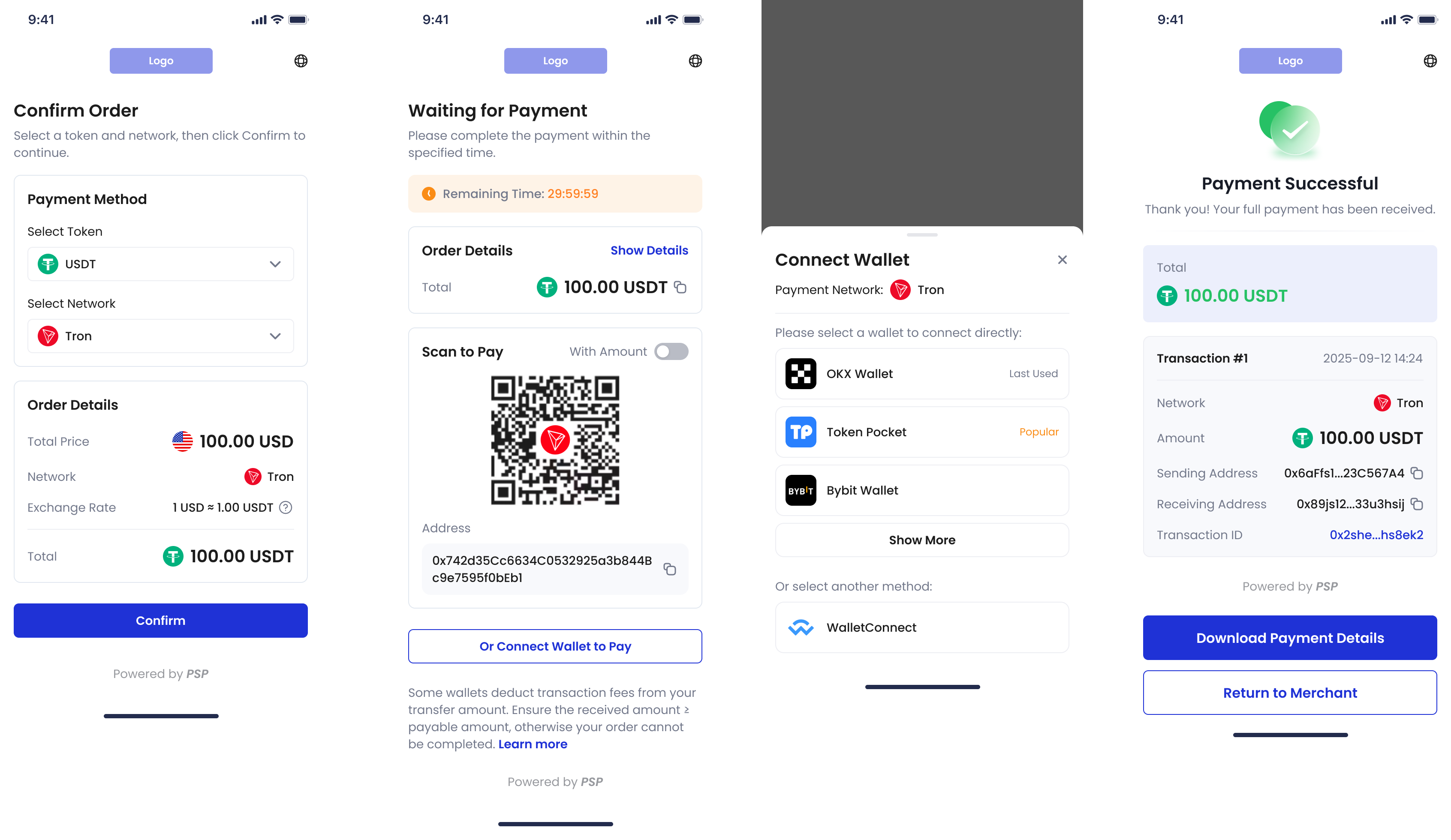
 ### On Desktop
The diagram below shows the interaction process of the order payment page on desktop (again with third-party wallet connection as an example):
1. The payer selects a token and chain.
2. They confirm the order information and choose to pay with a third-party wallet.
3. They select the wallet from the list and complete the payment.
4. The page will automatically redirect to the payment success page.
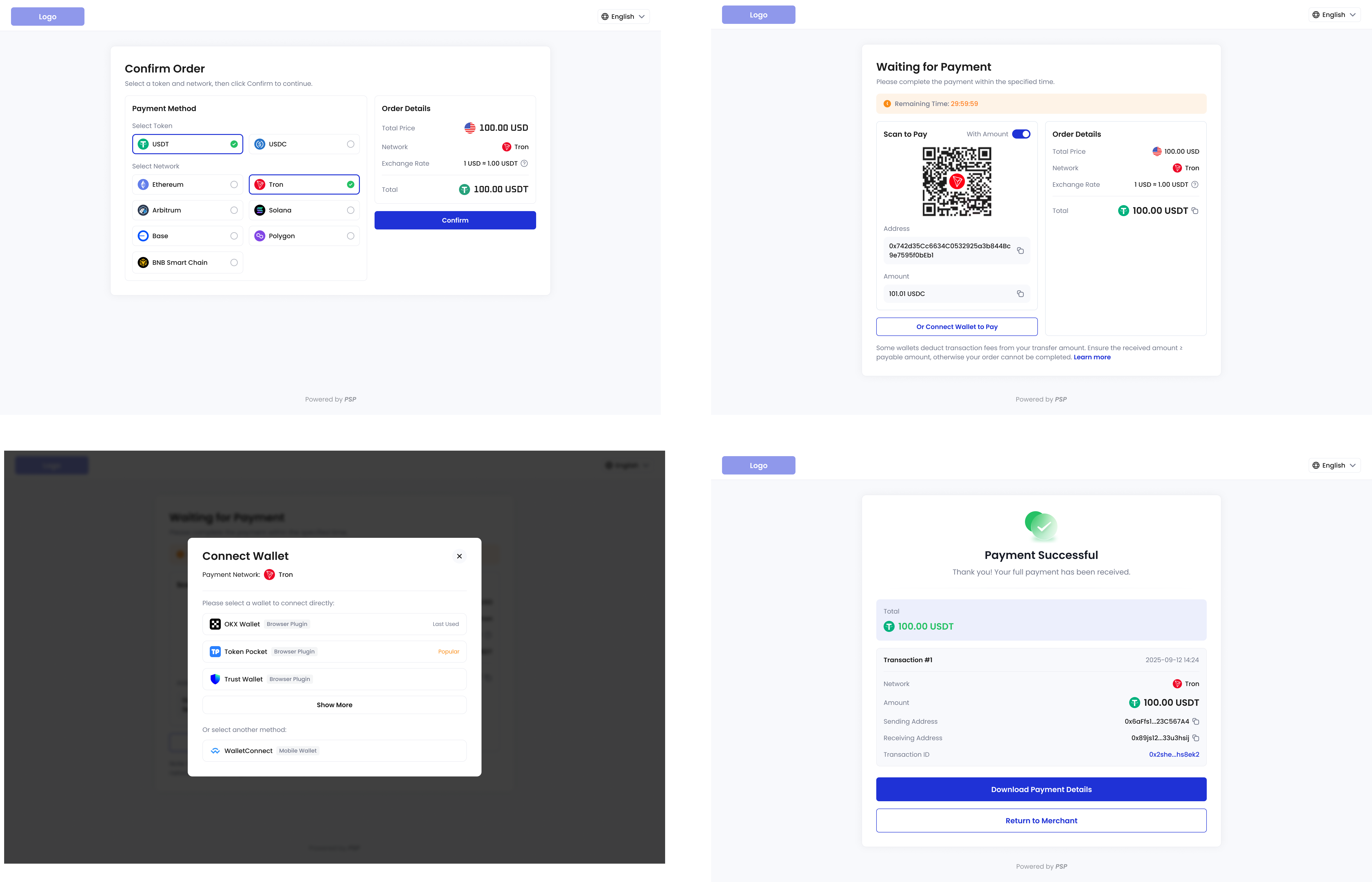
### On Desktop
The diagram below shows the interaction process of the order payment page on desktop (again with third-party wallet connection as an example):
1. The payer selects a token and chain.
2. They confirm the order information and choose to pay with a third-party wallet.
3. They select the wallet from the list and complete the payment.
4. The page will automatically redirect to the payment success page.
 ## Example Project
We provide a [complete demo project](https://github.com/CoboGlobal/cobo-payment-link-demo) for integrating order payment links. The project contains both frontend and backend source code (implemented in JavaScript), which can help you quickly experience and reference the integration process.
* The main frontend code is in `src/main.ts`, responsible for page display and triggering the payment process.
* The backend code is in `server.js`, handling communication with the Payments API and generating order payment links.
## Example Project
We provide a [complete demo project](https://github.com/CoboGlobal/cobo-payment-link-demo) for integrating order payment links. The project contains both frontend and backend source code (implemented in JavaScript), which can help you quickly experience and reference the integration process.
* The main frontend code is in `src/main.ts`, responsible for page display and triggering the payment process.
* The backend code is in `server.js`, handling communication with the Payments API and generating order payment links.
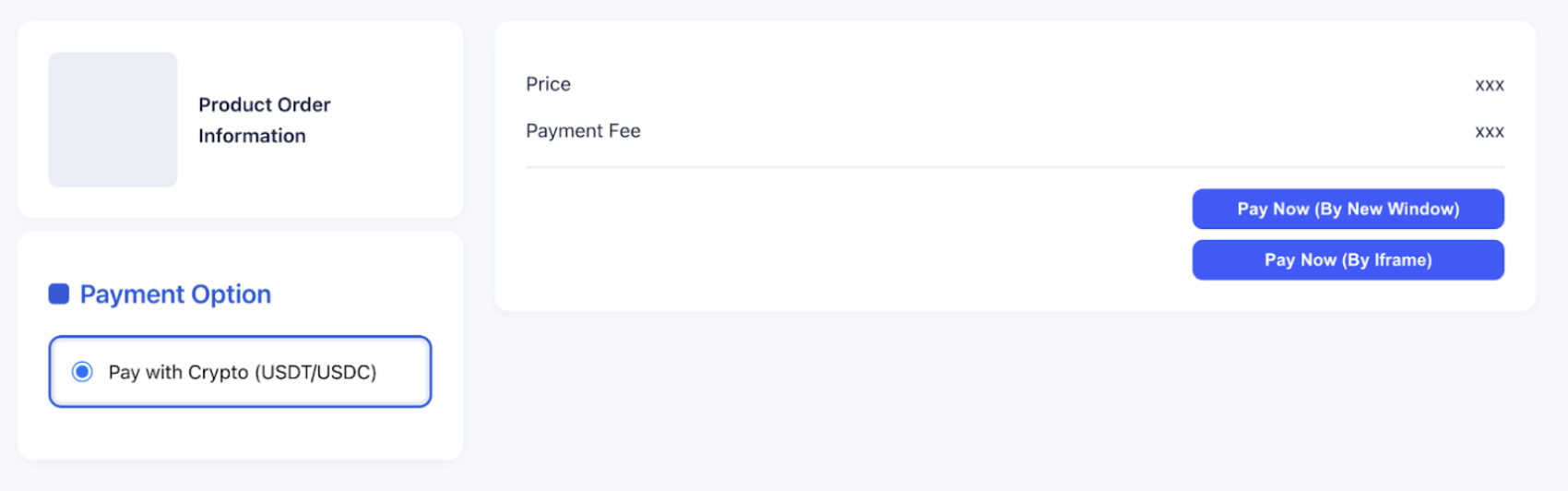 The example project includes two integration methods: clicking **Pay Now (By New Window)** opens the payment page in a new tab, and clicking **Pay Now (By iframe)** embeds the payment page in the current page via iframe.
The interaction process between frontend and backend in this demo is as follows:
1. When the payer clicks the **Pay Now** button, the frontend sends a request to the backend to create an order payment link.
2. The backend receives the request and calls the [Create order link](/payments/en/api-references/payment/create-order-link) API to generate the payment link.
3. The backend returns the payment link to the frontend. The frontend then opens a new window or embeds the payment page in an iframe using the returned link, where the payer can complete the payment.
You can open your browser’s developer tools to see details of the network requests:
The example project includes two integration methods: clicking **Pay Now (By New Window)** opens the payment page in a new tab, and clicking **Pay Now (By iframe)** embeds the payment page in the current page via iframe.
The interaction process between frontend and backend in this demo is as follows:
1. When the payer clicks the **Pay Now** button, the frontend sends a request to the backend to create an order payment link.
2. The backend receives the request and calls the [Create order link](/payments/en/api-references/payment/create-order-link) API to generate the payment link.
3. The backend returns the payment link to the frontend. The frontend then opens a new window or embeds the payment page in an iframe using the returned link, where the payer can complete the payment.
You can open your browser’s developer tools to see details of the network requests:
 ## Integration Steps
You can call the [Create order link](/payments/en/api-references/payment/create-order-link) API to create an order payment link.
### Interaction Flow
The diagram below shows the complete interaction flow between the payer, your application’s frontend and backend, and Cobo:
## Integration Steps
You can call the [Create order link](/payments/en/api-references/payment/create-order-link) API to create an order payment link.
### Interaction Flow
The diagram below shows the complete interaction flow between the payer, your application’s frontend and backend, and Cobo:
```mermaid theme={null}
sequenceDiagram
participant Payer
participant Your Frontend
participant Your Backend
participant Cobo
participant Payment Link
participant Third-party Wallet
Payer ->> Your Frontend: Choose to pay with cryptocurrency
Your Frontend ->> Your Backend: Request order payment link
Your Backend ->> Cobo: Call API to create order payment link
Cobo -->> Your Backend: Return payment link
Your Backend -->> Your Frontend: Return payment link
Payer ->> Your Frontend: Click button to open payment link
Your Frontend ->> Payment Link: Open payment link (redirect/iframe)
Payer ->> Payment Link: Select token and chain, confirm order
Payment Link ->> Third-party Wallet: Connect wallet / scan to pay
Cobo ->> Cobo: Monitor on-chain result
Payer ->> Third-party Wallet: Complete payment
Cobo -->> Your Backend: Webhook notifies order status update
Your Backend -->> Your Frontend: Notify payment result
```
### Payable Amount Calculation
When creating an order payment link, you must specify the pricing amount, developer fee, and other essential parameters. Once the payer enters the payment page, they can choose the currency and blockchain for payment. The system will automatically calculate the payable amount based on your configuration and the payer's selection, displaying it in real time on the UI. You can also directly specify the payable amounts for supported cryptocurrencies.
* **Pricing amount** (`pricing_amount`): The base amount of the order, excluding the developer fee.
* If `pricing_currency` is set, the order amount is denominated in that fiat currency.
* If `pricing_currency` is not set, the order amount is denominated in the cryptocurrency specified by `payable_currency`.
* **Developer fee** (`fee_amount`): If you are a platform serving multiple downstream merchants and need to split revenue, you can set this field accordingly. The ratio of developer fee to pricing amount determines your revenue sharing ratio with your downstream merchants. For more information, see [Amounts and Balance Management](/payments/en/guides/amounts-and-balances).
- No developer fee
- System calculates payable amount | - Pricing amount in USDT
- No developer fee
- System calculates payable amount | - Pricing amount in fiat
- With developer fee
- Custom payable amounts | - Pricing amount in USDC
- With developer fee
- System calculates payable amount | | `pricing_amount` | `"100"` | `"100"` | `"100"` | `"100"` | | `fee_amount` | `"0"` or not set | `"0"` or not set | `"2"` | `"2"` | | `pricing_currency` | `"USD"` | `"USDT"` | `"USD"` | `"USDC"` | | Payer's token choice | `"ETH_USDT"` | `"ETH_USDT"` | `"ETH_USDT"` | `"ETH_USDT"` | | `payable_amounts` | Not set | Not set | `[{"payable_currency": "ETH_USDT", "payable_amount": "104.08"}]` | Not set | | Real-time exchange rate | 0.99 | 1 | N/A (custom payable amount used) | 1 | | Calculation | (100 + 0) / 0.99 | (100 + 0) / 1 | Directly uses specified payable\_amounts | (100 + 2) / 1 | | Final payable amount | `"101.01"` | `"100.00"` | `"104.08"` | `"102.00"` |