

Disclaimer: This article contains AI translations and should only be used as reference. Contact Cobo’s support team through [email protected] if you have any questions.
- Late payment in order mode: Funds are automatically settled to the developer account. If the funds should actually belong to the merchant, you can allocate them back to the merchant account.
- Multi-merchant revenue sharing for a transaction: After automatic settlement, you can manually allocate funds to flexibly distribute revenue among merchant accounts.
- Developer fee entry error or undercollection: You can manually allocate funds from the merchant account to the developer account to collect the correct developer fee.
- Allocation is currently limited to accounts within the same wallet. It is essentially an internal adjustment of balances between two accounts and does not involve actual on-chain transfers. Therefore, when the source account and destination account are in different wallets, you may not be able to complete the allocation, or the allocatable amount may be limited.
- If you encounter situations where allocation is not possible or the allocatable amount is insufficient, it is recommended to use the Payout feature to transfer funds directly to the target merchant’s external address.
Steps
- In the Payments App, click Fund Management > Balance to go to the Balance page.
- Click the Merchant Balance or Developer Balance tab, and locate the corresponding account balance card.
- Click the Allocate button on the balance card.
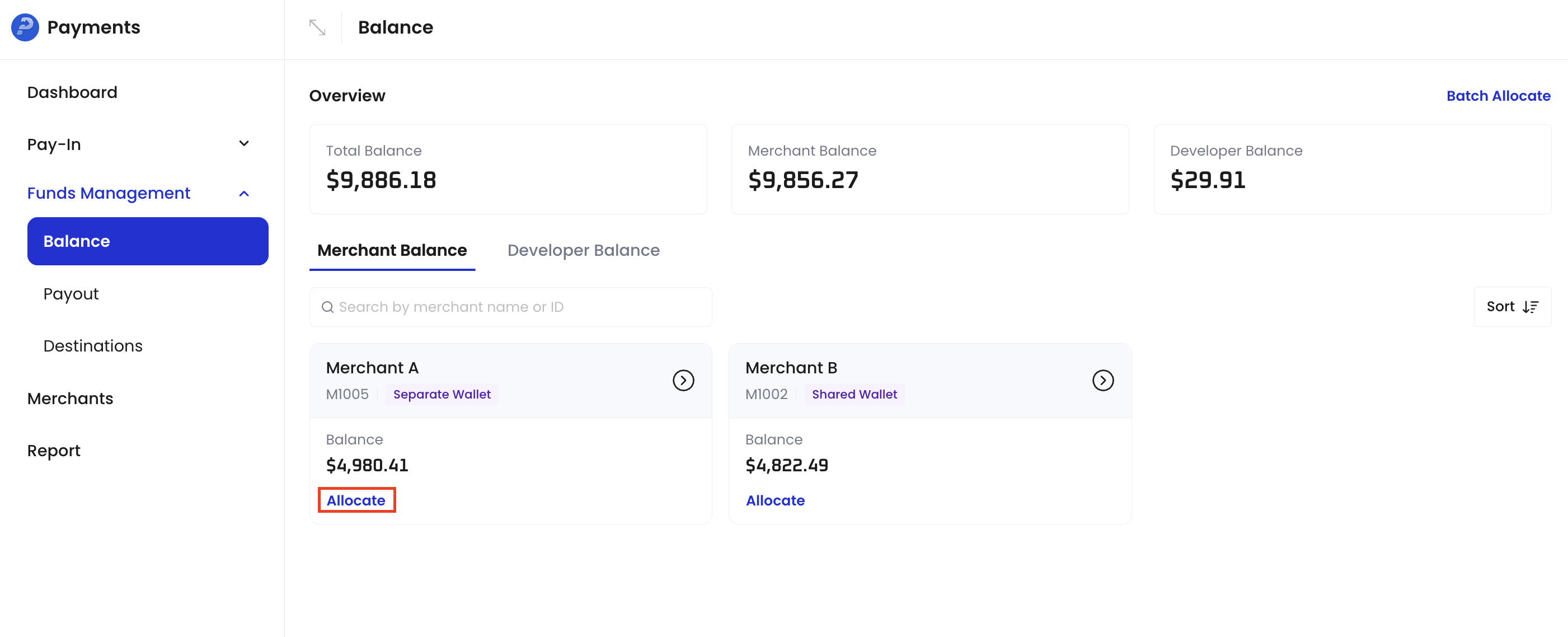
- Fill in the allocation form:
- From: Select the source account.
- To: Select the destination account.
- Token: Select the token you want to allocate. You can only allocate one token at a time.
- Amount: Enter the amount to allocate.
- Description: Enter a description for the allocation.
- Click Preview to review the allocation details.
- Confirm the allocation.