

Disclaimer: This article contains AI translations and should only be used as reference. Contact Cobo’s support team through [email protected] if you have any questions.
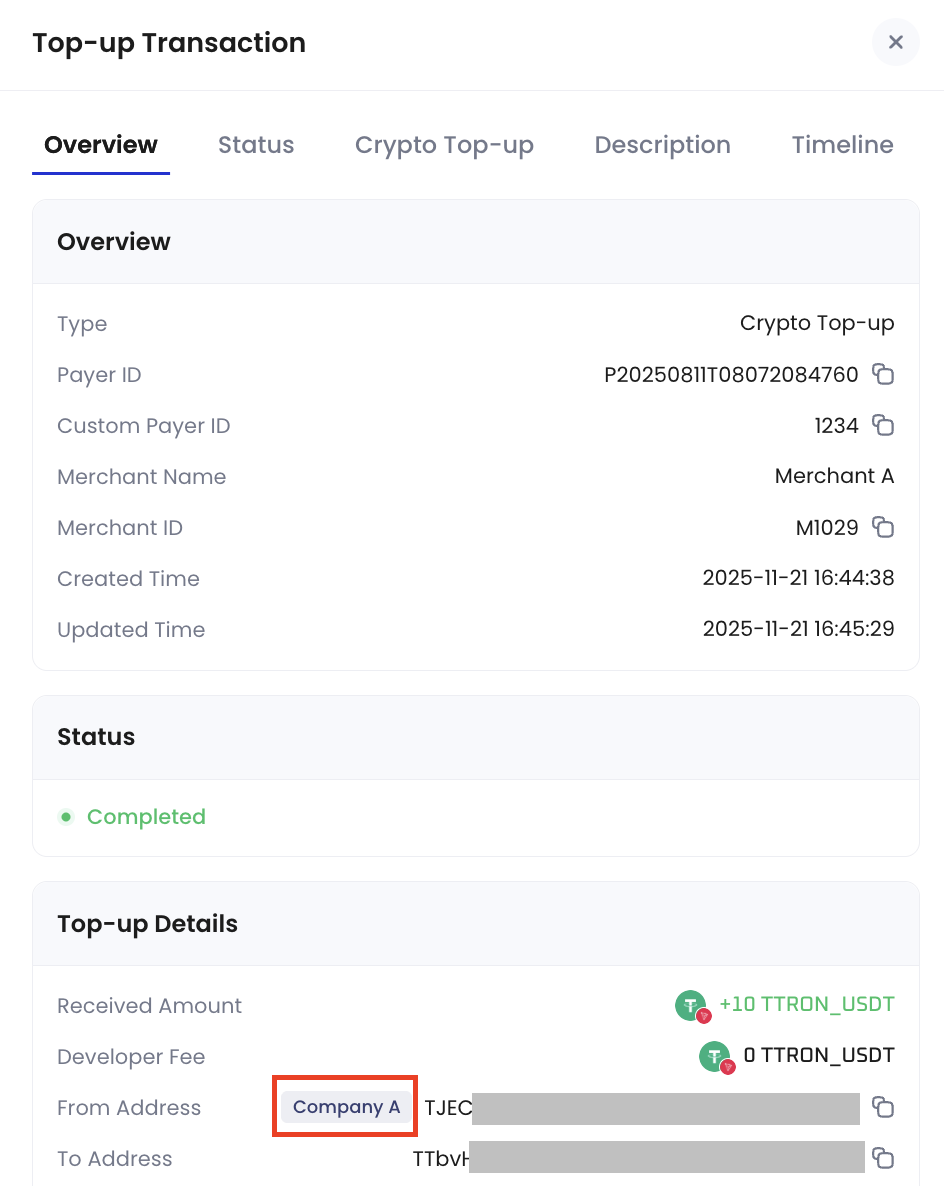
Currently, counterparty functionality only applies to Top-up mode. Order mode and Subscription mode are not supported at this time.
Create a counterparty
You can create counterparties in the Payments App and add wallet addresses to them.Steps
- Log in to Cobo Portal development environment or production environment.
- In the left navigation bar, click Apps, then click the Payments card to launch the App.
- In the App’s left navigation bar, click Pay-in > Counterparties.
- Click the Add Counterparty button in the upper right corner.
- In the pop-up form, fill in the following information:
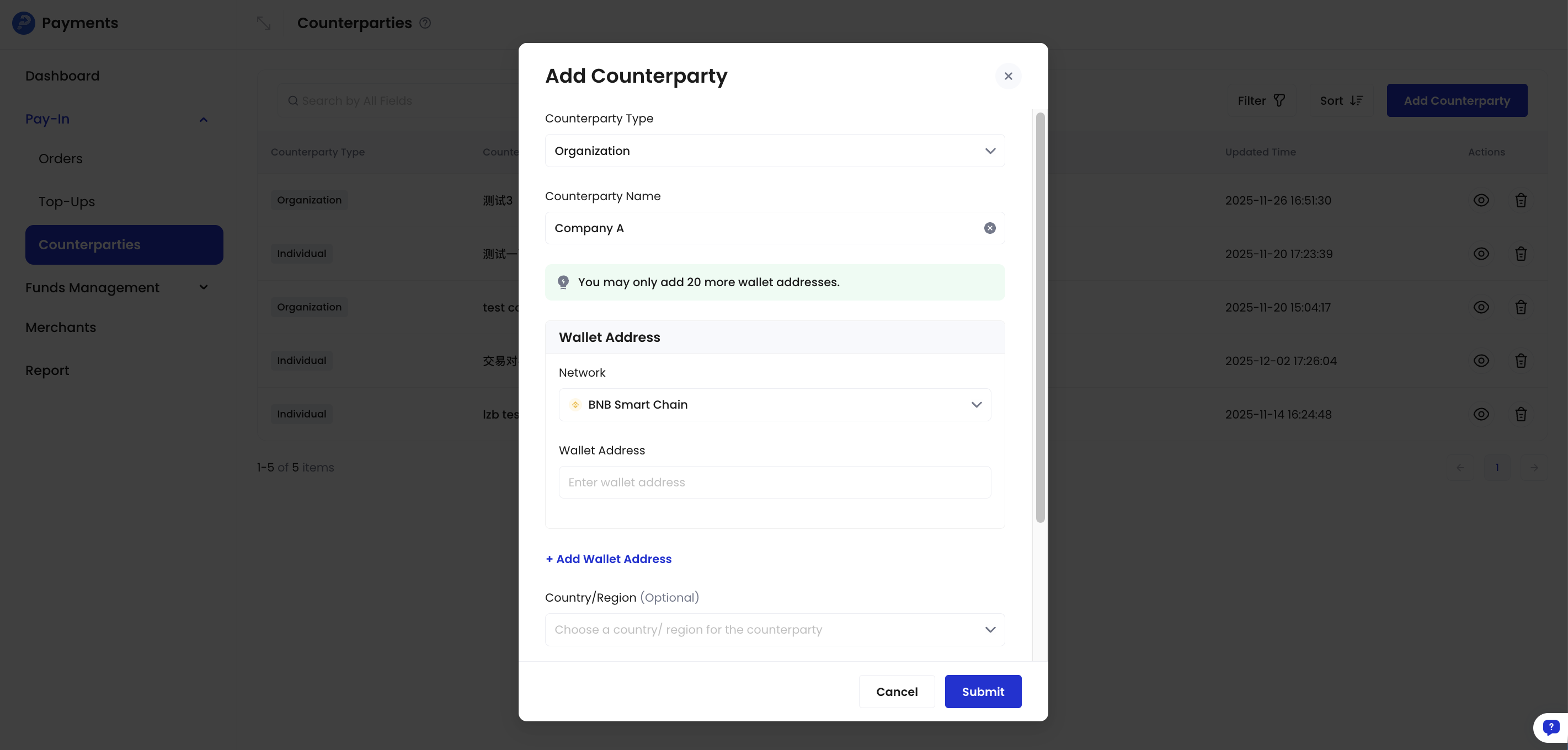
- Counterparty Type: Select Individual or Organization
- Counterparty Name: Enter a name to identify this counterparty
- Wallet Addresses: Enter the counterparty’s wallet addresses. Multiple addresses are supported.
You can add multiple wallet addresses to a single counterparty, including multiple addresses on the same blockchain.
- Network: Select the blockchain network
- Wallet Address: Enter the wallet address
- Country/Region (optional): Select the counterparty’s country/region
- Email (optional): Enter the counterparty’s email address
- Contact Address (optional): Enter the counterparty’s contact address
- Click Submit and complete multi-factor authentication (MFA).