

Disclaimer: This article contains AI translations and should only be used as reference. Contact Cobo’s support team through [email protected] if you have any questions.
1. Create crypto payout request
You can create crypto payout requests through Payments App or Payments API.- Payments App
- Payments API
- Log in to Cobo Portal development environment or production environment.
- In the left navigation bar, click Apps, then click the Payments card to launch the App.
- In the App’s left navigation bar, click Funds Management > Payouts.
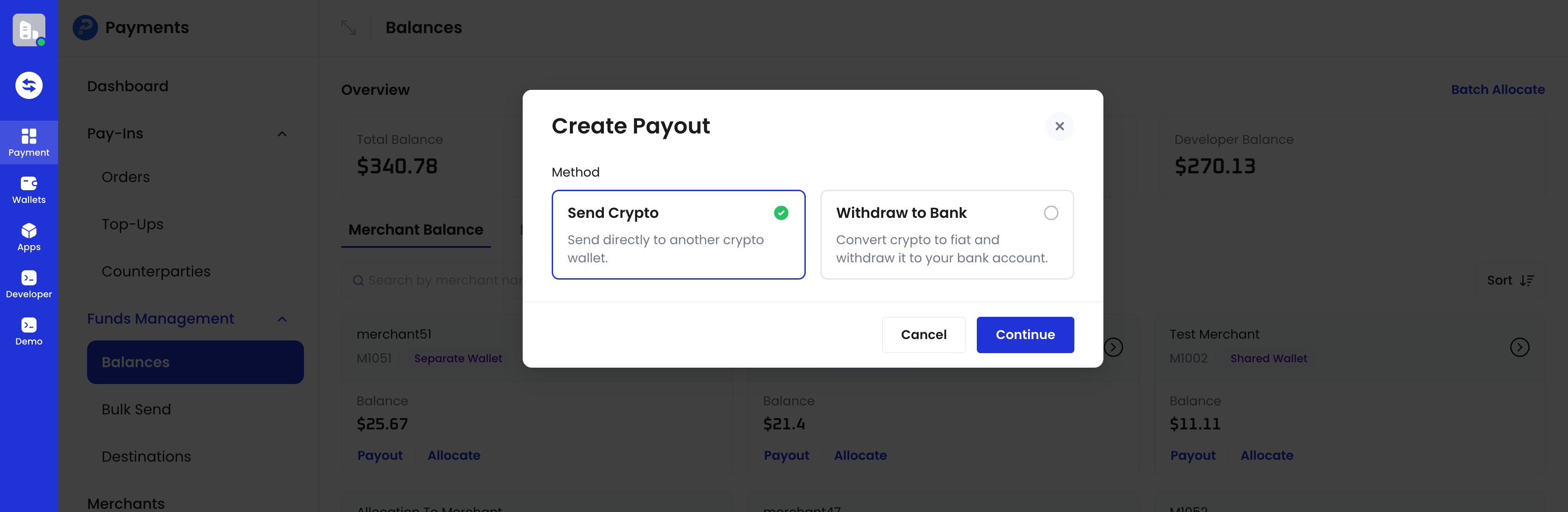
- You can choose to withdraw from Merchant balance or Developer balance. In this example, we choose to withdraw from the merchant balance. Click the Payout button on the Merchant Balance card.
-
In the pop-up window, select Crypto Payout.
-
Fill in the transfer information, including token, network, merchant name, amount, and receiving address.
If you have enabled the Use Destinations as Payout Whitelist toggle in Destinations, you can only transfer to registered destinations. For more details, see Destinations
-
Auto-Select Sources:
- When enabled, you only need to enter the total payout amount, and the system automatically allocates the payout across available token balances in your wallet.
- When disabled, you must manually specify the payout amount for each token. This option is enabled by default and can be turned off if needed.
-
Cross-chain payout:
When paying out USDT or USDC on a specific network, the system can use USDT or USDC balances on other networks in your wallet and bridge them before payout.
Currently, only same-asset cross-chain payouts are supported. Cross-asset conversion is not supported.
- Fees: Same-asset cross-chain payouts incur a processing fee, which is automatically calculated based on the payout amount.
-
Example:
Available balances in the source account:
- 150 USDT (Tron)
- 50 USDT (Ethereum)
- Follow the on-page prompts to confirm and submit the transfer request.
2. Automatic fund collection
Before processing your payout, Cobo checks whether your total available account funds — across your merchant or developer balance — are sufficient to cover the requested amount. This total-funds check is based on your account’s ledger balance. For details about how this balance is calculated, see Accounts and fund allocation. If the total funds are sufficient but part of that amount is still held at payment addresses (for example, addresses used to collect Order mode or Top-up mode payments) rather than already consolidated into your balance, Cobo automatically collects those funds as part of processing the payout. You do not need to submit a separate request to collect the funds first — this step runs automatically whenever a payout needs it. While collection is in progress, the payout request remains inPending status. If a collection attempt fails, Cobo automatically retries it; you do not need to resubmit the payout or take any manual action. If the payout remains Pending longer than expected, call Get payout information to requery its status.
This automatic collection happens as an internal step of the payout process. It is separate from the (deprecated)
Create forced sweep and List forced sweeps operations, which previously let you trigger fund collection manually and are no longer necessary.3. Complete secondary confirmation, risk control review, and transaction signing
After creating a transfer request, based on your submission method, risk control settings, and other factors, you need to complete the following operations:- Secondary confirmation: If you transfer through Payments App, you need to confirm the transfer request on Cobo Guard.
- Risk control review: If you have set transaction policies, reviewers may need to approve the transfer request on Cobo Guard.
- Transaction signing: If you are using MPC Wallets, Mobile Co-Signer or Server Co-Signer needs to sign to finally complete the transfer operation.
4. Follow up on transfer status
You can subscribe to thepayment.payout.status.updated event to receive real-time updates on transfer status. Refer to Webhook reference to understand the detailed trigger conditions and returned data structure of each event.
You can also actively query transfer request status through Payments App or Payments API.
- Payments App
- Payments API
- Log in to Cobo Portal development environment or production environment.
- In the left navigation bar, click Apps, then click the Payments card to launch the App.
- In the App’s left navigation bar, click Funds Management > Balances.
- On the Merchant Account or Developer Account details page, open the Recent Activities – Payout - Crypto Payout tab to view the status and details of all payout requests.