

Disclaimer: This article contains AI translations and should only be used as reference. Contact Cobo’s support team through [email protected] if you have any questions.
Prerequisites
- Contact our sales team to obtain your account activation link.
- An iOS device for running Cobo Guard, which is our dedicated application for multi-factor authentication (MFA), operation approval, transaction signing, and key share management.
Basic preparation
Create account and set up Cobo Guard
As the first admin of your team, please use the activation link provided by our sales team to create your Cobo Portal development environment account. After creation, please follow these steps to set up Cobo Guard:- Log in to Cobo Portal development environment.
- Click Guide in the lower left corner, then click Bind Cobo Guard.
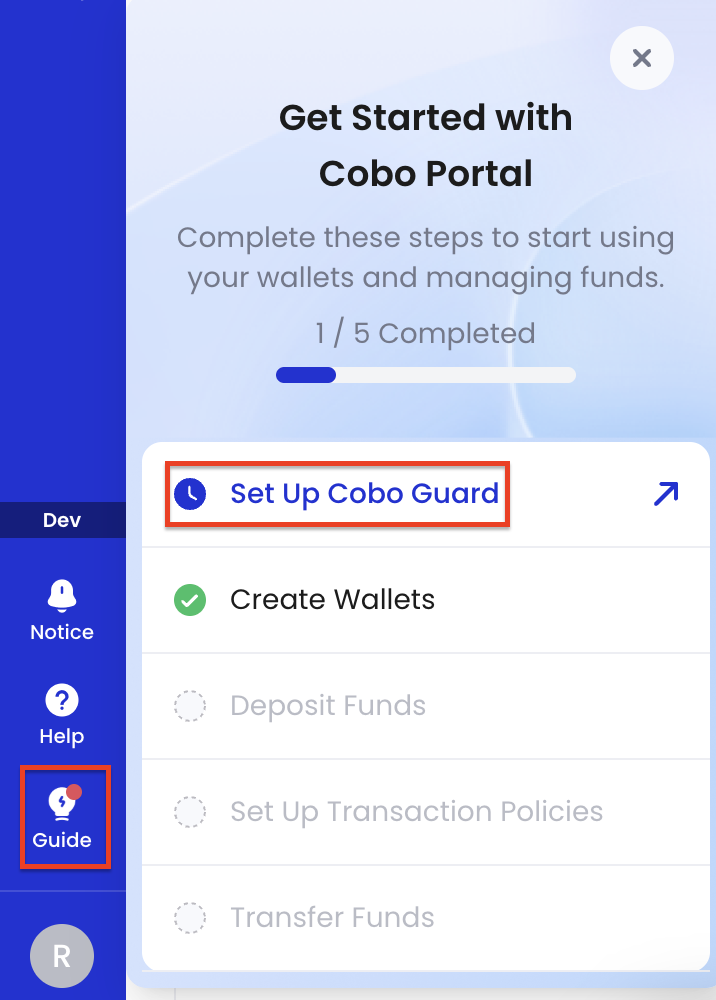
- Follow the on-screen instructions to install Cobo Guard on your iOS device and associate your account with Cobo Guard.
Invite members
- Log in to Cobo Portal development environment.
- Click the profile icon in the lower left corner, then click Team.
- Click Members. On the Members page, click Invite Member.
-
Enter the member’s email address and name, then select the appropriate user role.
After receiving the invitation, new members should create their own accounts and set up Cobo Guard as described in the previous section.Please confirm on Cobo Guard that this invitation was initiated by you. Additionally, according to the default business risk control rules, at least half of the team admins need to approve the invitation request on Cobo Guard.
Install Payments App
Payments App provides a web interface that allows you to conveniently perform daily operations such as payment collection queries, fund management, and payouts. Installation steps are as follows:- Log in to Cobo Portal development environment.
- On the homepage, click the Payments card.
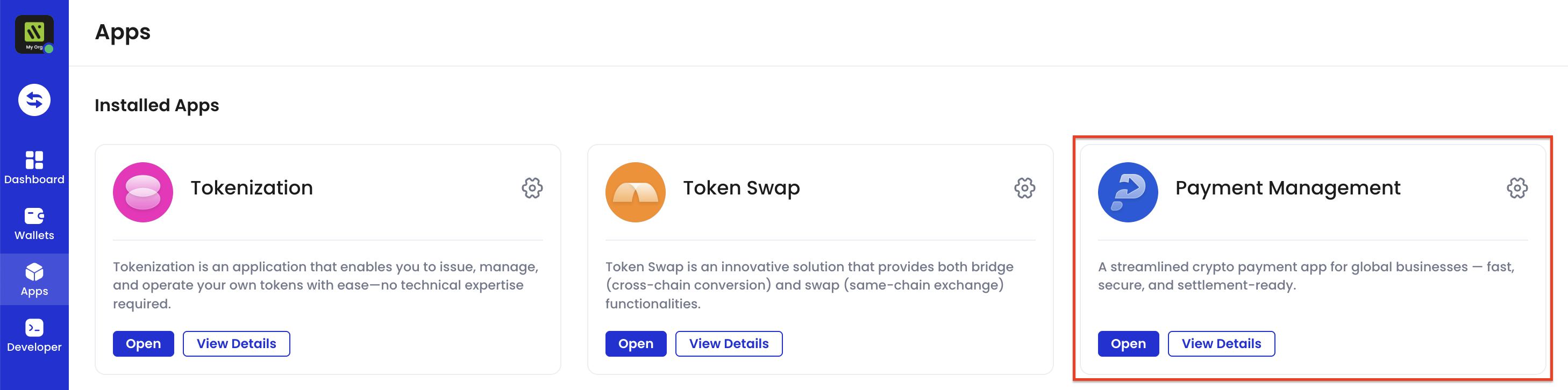
- Click the Install button and follow the on-page instructions to complete installation. For Wallet scope, select Any wallet type.
- If the page prompts that admin approval is needed, please notify the admin to approve on Cobo Guard. After approval, the App will automatically complete installation.
Technical configuration
Payments API calling preparation
If you need to call Payments API, you need to follow these steps to complete API key configuration.-
Refer to the Developer guide to generate an API key and API secret pair, and register the API key in Cobo Portal. Please note the following configurations:
- User role: Select Payment admin
- Wallet scope: Select Any wallet type
- Key type: Select Temporary
- If you choose to use an SDK instead of manually writing API requests, you need to install the SDK for the corresponding programming language:
Subscribe to webhook events
If you need to receive real-time notifications of payment-related events, you can set up and register a webhook endpoint to receive webhook events. Specific steps are as follows:- Refer to the Developer guide to set up a webhook endpoint.
- Register the webhook endpoint in Cobo Portal and subscribe to payment-related webhook events.
Business configuration
Top up Fee Station
During your daily business operations, you need to manage various fees incurred on Cobo through Fee Station. Before you start integration, please ensure that you have sufficient funds in your Fee Station to pay for fees generated during payouts, refunds, and other processes:- You can use USDT or USDC as the fee token
- The recommended initial top-up amount is equivalent to approximately 50 USD in cryptocurrency. You can adjust the top-up amount based on actual business needs.