

Disclaimer: This article contains AI translations and should only be used as reference. Contact Cobo’s support team through [email protected] if you have any questions.
- Fixed amount: The amount payable is specified when the order is created
- Validity period: Payers need to complete payment within the specified time
- Exception handling: Supports handling various exception situations, including:
- Canceling orders that have not been paid
- Initiating refunds for paid orders
- Handling payment exceptions such as overpayment, underpayment, and late payment
Create order
You can create an order in two ways:- Call Create pay-in order to directly create a payment order. Cobo creates the order synchronously and returns its
order_id, together with the payable amount and payment address, in the API response. You will need to build the frontend page yourself, or you can integrate Web3 payment capabilities using the React SDK / Vue SDK. - Call Create order link to generate a payment link. This call returns only the link — no payment order exists yet, so there is no
order_id. The link directs the payer to a payment page provided by Cobo; once the payer selects the payment token and blockchain network and submits the order there, Cobo creates the order and generates theorder_id. You can also embed this payment page into your website or application using an iFrame.
Prerequisites
Before you can create a pay-in order, make sure the following requirements are met.
Completing Payments onboarding automatically provisions a default merchant for your organization, which you can use directly as the
merchant_id value. If you need additional merchants, refer to Create merchant.
Create pay-in order does not independently check merchant KYB, merchant activation or status, merchant configuration, or whether a developer-fee configuration record exists for the merchant. These checks are not substitutes for completing organization-level Payments onboarding — if your organization’s payment developer account is not active, the request fails regardless of merchant state. See Error codes and status codes for details on this failure.
Implementation steps
- Create order
- Create order link
The following diagram shows the complete interaction process between payers, merchants, and Cobo during the order payment process:In step ②, Cobo creates the payment order and generates its For the complete list of request parameters, refer to Create pay-in order.When creating an order, you must choose one of the following two amount parameter combinations based on your business model:The table below shows how the payable amount is determined in four different configuration scenarios:
order_id, returning both synchronously in the Create pay-in order response.Order identification fields
Before you configure the amount fields, set the order identification fields so that you and Cobo can uniquely track the order:- PSP order code (
psp_order_code): Set this field to your own internal business order identifier. This field is required, and the value must be unique within your Cobo organization. - Merchant order code (
merchant_order_code): Set this field only if you are a platform or payment service provider (PSP) serving a downstream merchant that has its own separate order reference to track. This field is optional.
psp_order_code and can omit merchant_order_code. If you serve downstream merchants as a platform or PSP, set psp_order_code to your own order identifier, and additionally set merchant_order_code to the corresponding downstream merchant’s order reference so that both you and the merchant can reconcile the order using your own identifiers.For example:- Platform or PSP serving a downstream merchant:
- Direct merchant serving payers:
- **Option 1: **The original order is priced in fiat currency, and you collect payment in cryptocurrency
- Required:
pricing_currency,pricing_amount,payable_currency - Not required:
payable_amount
- Required:
- **Option 2: **The original order is priced in cryptocurrency, and you collect the payment directly in the same cryptocurrency
- Required:
payable_currency,payable_amount - Not required:
pricing_currency,pricing_amount
- Required:
-
Pricing Currency (
pricing_currency):
The fiat currency used to price the goods. For supported fiat currencies, please refer to Supported Currencies and Blockchains.
This field is optional and is not required if your goods are priced in cryptocurrency. -
Pricing Amount (
pricing_amount):
The fiat price of the goods, denominated in the currency specified bypricing_currency.
This field is optional and is not required if your goods are priced in cryptocurrency. -
Payable Currency (
payable_currency):
The cryptocurrency the payer needs to pay. For supported cryptocurrencies, please refer to Supported Currencies and Blockchains. -
Payable Amount (
payable_amount):
The amount of cryptocurrency the payer needs to pay, denominated in the currency specified bypayable_currency.
This field is optional:- If
payable_amountis specified, the system will use this value directly as the amount the payer needs to pay. - If
payable_amountis not specified, the system will calculate the payable amount using the real-time exchange rate:
Payable Amount = (Order Amount + Developer Fee) / Exchange Rate.
The exchange rate is based on the rate returned by the Get exchange rate operation at the time the order is created.
- If
-
Developer Fee (
fee_amount): If you are a platform serving multiple downstream merchants, you can configure this order-level charge to collect a developer share from this specific order. This is distinct from the merchant-leveldeveloper_fee_rateused in Top-up mode; for details on configuring that rate, refer to Merchants. In a normal settlement, where the payer’s deposit exactly matches the payable amount, the developer account receivesfee_amountand the merchant account receives the remainder:- When
fee_amountis 0, the merchant account receives the full collected amount. - When
payable_amountis 104.08 andfee_amountis 2, an exact 104.08 deposit credits 102.08 to the merchant account and 2 to the developer account.
fee_amountand the payable amount, rather than always subtracting the literalfee_amountvalue. If a deposit is processed after the order has already reached theEXPIRED,UNDERPAID, orCOMPLETEDstatus, the entire deposit is credited to the developer account regardless offee_amount. For more details on how funds are settled and allocated between accounts, refer to Accounts and fund allocation. - When
If you are a merchant (serving users directly), you typically do not need to set the developer fee.
Query order status
You can subscribe to the following webhook events to receive real-time update notifications of order status. Refer to Webhook reference to understand the trigger time and returned data structure of each event.payment.order.status.updatedpayment.transaction.latepayment.transaction.completed
- Payments App
- Payments API
- Log in to Cobo Portal development environment or production environment.
- In the left navigation bar, click Apps, then click the Payments card to launch the App.
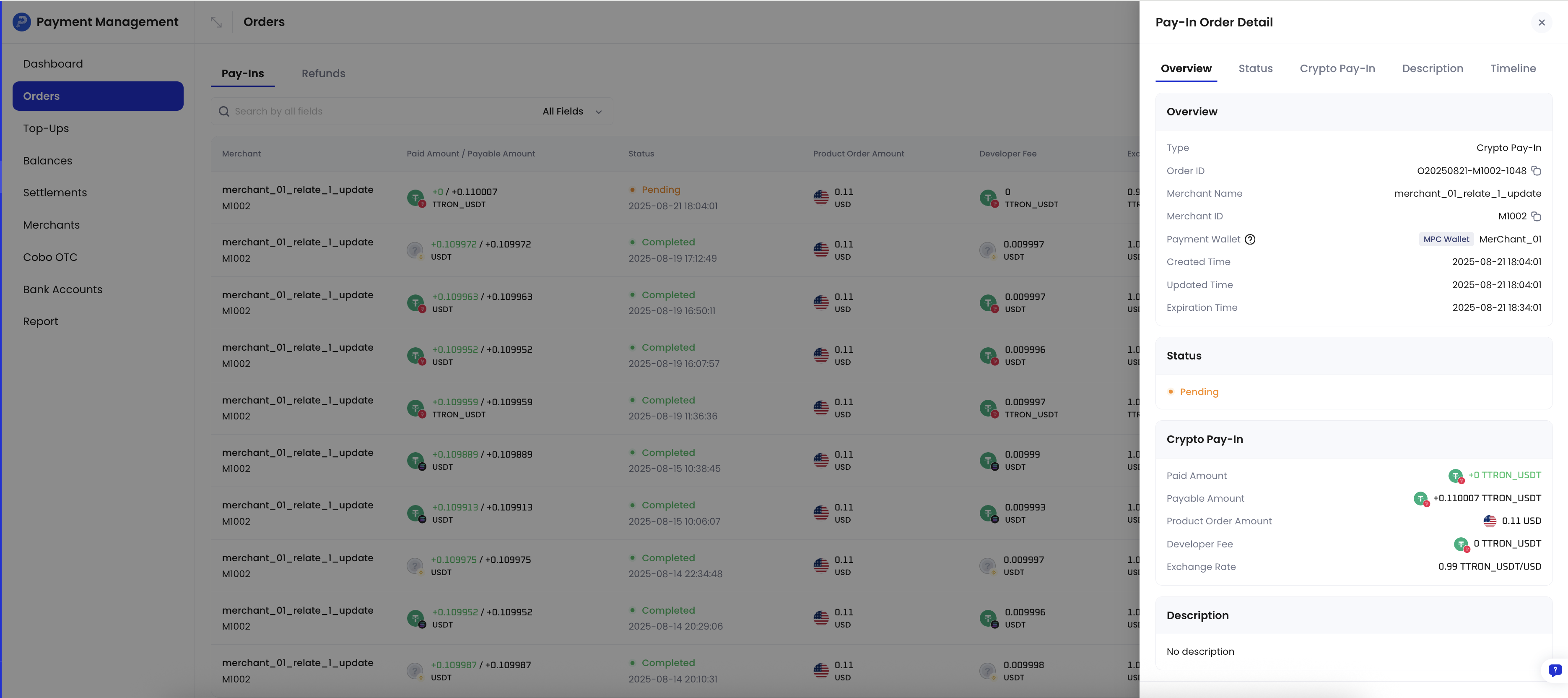
- In the App’s left navigation bar, click Pay-In > Orders. You can view detailed information of all orders on this page, such as order ID, merchant information, payment amount, order status, etc.
- After the payer completes payment and the transaction passes compliance screening, the order status will change to Completed.
Exception situations
In order mode, you may need to handle the following exception situations.Cancel payment order
When a payment order is in thePending status, that is, no deposit transaction has been detected yet, you can call Update pay-in order to cancel the order. After cancellation, the order status will change to Expired.
Underpayment, overpayment, partial payments, and late payment
The following four exception situations may occur during the payment process:Underpayment
An order becomes underpaid when, at the end of its validity period, the cumulative amount received across all successful receipts that passed compliance screening is still less than the payable amount minus the allowedamount_tolerance. Before the order expires, Cobo continues to accumulate successful receipts and compare the cumulative total with this threshold. If the cumulative total remains below the threshold at expiry, the order transitions to the terminal Underpaid status.
Track the cumulative amount received in received_token_amount, and inspect individual receipts in the transactions array. Both are returned by Get pay-in order information.
For information about settling underpaid funds, see Accounts and fund allocation. An additional deposit received after the order becomes Underpaid is handled as a late payment.
Overpayment
When the payer’s actual payment amount exceeds the payable amount, the order still transitions toCompleted once the payable-amount threshold is met. There is no public Overpaid order status.
The excess amount is included in received_token_amount, and the receipt that caused the overpayment appears in the transactions array. Both are returned by Get pay-in order information.
For information about settling the excess amount between merchant and developer accounts, see Accounts and fund allocation. To return excess funds to the payer, initiate a refund as described in Handle refund requests.
Partial payments
A payer can complete one order using more than one transfer. Each successful transfer accumulates in the order’sreceived_token_amount, and every individual receipt appears in the transactions array. Both are returned by Get pay-in order information.
There is no separate status for an order that has received a partial payment. The order remains in its current status until either:
- The cumulative received amount reaches the payable amount within the allowed tolerance, and the order becomes
Completed; or - The order’s validity period ends while the cumulative received amount remains below that threshold, and the order becomes
Underpaid. See Underpayment.
Late payment
A late payment occurs when a deposit transaction that passes compliance screening arrives after the order reachesExpired, Underpaid, or Completed. The order’s final status does not change as a result of a late payment.
Each late receipt triggers one payment.transaction.late webhook event. The receipt is also recorded in the order’s transactions array, returned by Get pay-in order information, so you can reconcile it with the order history.
For information about how late-payment funds are credited, see Deposit attribution.
The following sequence shows how underpayment, overpayment, partial payments, and late payment can interact for a single order:
Accounts and fund allocation details how Cobo handles funds in cases of overpayment, underpayment, and late payment.
Before a payout, Cobo also automatically collects funds received through orders from their payment addresses. For details, refer to Automatic fund collection.
Handle refund requests
You can initiate a refund order through Payments App or Payments API to refund funds to the payer. The following diagram shows the interaction process between payers, merchants, and Cobo during the refund process.Create refund order
- Payments App
- Payments API
- Log in to Cobo Portal development environment or production environment.
- In the left navigation bar, click Apps, then click the Payments card to launch the App.
- In the App’s left navigation bar, click Pay-In > Orders.
- Select the target order, then click the View Details button on the right.
- On the order details page, click the Refund button.
- In the pop-up form:
- Select the source of the refund amount. You can choose Merchant balance or Developer balance.
- Enter the refund amount. This amount must not exceed the corresponding merchant balance or developer balance.
- (Optional) Enter the developer fee amount. This fee will be deducted from the refund amount and credited to the developer balance. For a detailed description of developer fees, refer to Accounts and fund allocation.
- Enter the receiving address. You can click Use original payment address, and the system will automatically fill in the original payment address for this order. If you want to refund to another address, you can also manually enter the target address.
- Click Preview to confirm that all information is correct, then click Submit to create the refund order.
Query refund order status
You can subscribe to thepayment.refund.status.updated event to receive real-time updates on refund order status. Refer to Webhook reference to understand the detailed trigger conditions and returned data structure of each event.
You can also actively query refund order status through Payments App or Payments API.
- Payments App
- Payments API
- Log in to Cobo Portal development environment or production environment.
- In the left navigation bar, click Apps, then click the Payments card to launch the App.
- In the App’s left navigation bar, click Pay-In > Orders.
- Click the Refunds tab. In the refund order list, find the target order, then click the View Details button on the right.
- View the order status on the refund order details page.
Compliance screening failure
When a transaction receives thepayment.transaction.failed event , this indicates that the transaction has failed to pass compliance screening by Cobo KYT or Screening App. In this case, you need to follow these steps to handle it:
- If the transaction subsequently passes manual review:
- If the order has not expired: The funds will be counted towards the order’s actual received amount, and the order status will be updated accordingly based on the actual received amount
- If the order has expired: The system will trigger the
payment.transaction.lateevent, and all funds will be credited to the developer balance
- If the transaction ultimately fails manual review:
- The funds will be frozen and will not be counted towards the order’s actual received amount
- The order status will remain unchanged
- The payer needs to redeposit sufficient funds and pass compliance screening within the order validity period for the order to change to
Completedstatus
- Cobo KYT: Please contact the Cobo support team through [email protected] for handling
- Screening App: You can evaluate and handle it yourself within the application
Minimum Deposit Threshold
A dust amount threshold prevents the collection fee from exceeding the transaction value. The threshold varies by token and is a token amount, not USD. A transaction at or below its token’s threshold is not credited, does not count toward the order’s received amount, and sends no webhook notification. Call List supported tokens to get each token’sdeposit_threshold.
For example, when the threshold is 0.05: