

Disclaimer: This article contains AI translations and should only be used as reference. Contact Cobo’s support team through [email protected] if you have any questions.
developer_fee_rate splits the deposit into a merchant share and a developer share; each positive share is credited independently to its own account ledger, though a deposit whose developer share rounds down to zero posts only the merchant-side ledger entry. For a full worked example of this split, refer to Accounts and fund allocation. To configure or adjust the rate, refer to Merchants. You can observe the gross amount received by calling List payer transactions, the resulting account balances by calling List merchant balances and Get developer balance, and the individual ledger entries by calling List balance changes.
Get top-up address
You can get top-up addresses through Payments App or Payments API. After providing the top-up address to the payer, the payer can top up any amount to that address at any time.Prerequisites
You have completed all the steps mentioned in Preparation.Operation steps
- Payments App
- Payments API
1. Create payer
You need to create a payer first, then get the top-up address corresponding to that payer:- Log in to Cobo Portal development environment or production environment.
- In the left navigation bar, click Apps, then click the Payments card to launch the App.
- In the App’s left navigation bar, click Pay-In > Top-Ups.
- Click the Create Payer button in the upper right corner.
- In the pop-up form:
- Select a merchant. Deposits to this payer’s top-up address are attributed through the payer and route to the merchant bound at the time the payer and address are created. For the complete deposit-routing model, see Accounts and fund allocation.
- Select a token and network. Cobo will create a dedicated top-up address on that network for this payer. After creating the payer, you can also create more top-up addresses on other networks for this payer to support multi-chain top-ups.
- Enter a custom payer ID. This ID needs to be the unique identifier for this payer in your system.
- Click Create to complete payer creation.
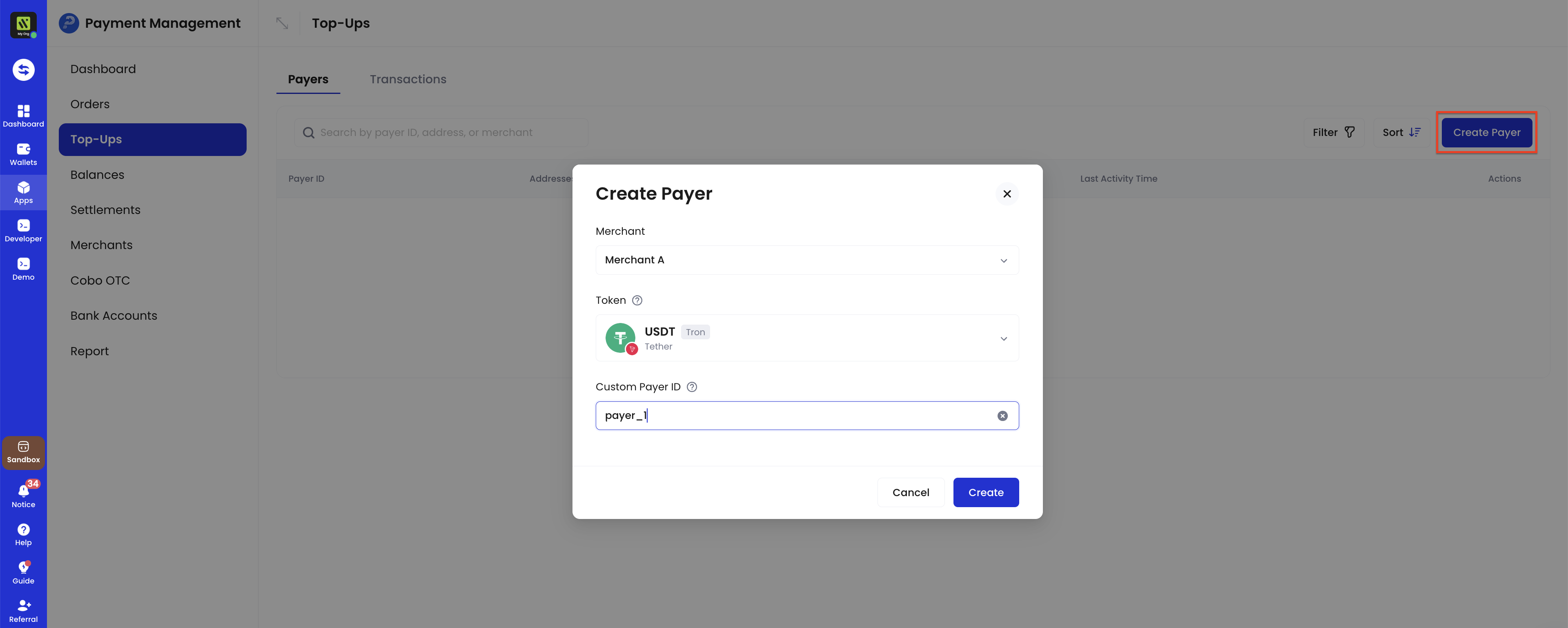
2. Get top-up address
- In the payer list, find the target payer, then click the View Address button on the right.

- You can view the addresses already created in the address list. If you want to add addresses on other chains, you can click the Create Address button to create them.

- Provide the required top-up address to the payer to complete payment.
Get top-up mode related events
You can subscribe to the following webhook events to receive real-time update notifications for top-up addresses and top-up transactions. Refer to Webhook reference to understand the trigger time and returned data structure of each event.payment.transaction.createdpayment.transaction.completed
- Payments App: In the App’s left navigation bar, click Pay-In > Top-Ups. In the payer list, find the target payer and click the View Transaction button on the right to view all top-up records for that payer.
- Payments API: Call List payers to get detailed information about all payers and their top-up transactions.
Exception handling
In top-up mode, you may need to handle the following exception situations.Top-up address replacement
You can actively replace a payer’s top-up address. Cobo will also automatically replace top-up addresses in specific situations.Actively replace address
When you need to replace a top-up address (for example, due to business changes, internal risk assessment, or other business needs), you can create a new address through Payments App or Payments API.- Payments App: In the payer list, find the target payer, then click the View Address button on the right. In the address list, click the Create Address button to create.
- Payments API: Call Update top-up address to create a new address.
For a single payer, the address can be replaced a maximum of 10 times. Exceeding the limit will result in an API request error.
Impact after address replacement
- Transaction monitoring: Cobo will continue to monitor transaction activity at the old address, and corresponding transactions will trigger corresponding webhook notifications.
- Fund handling: The association between this address and the merchant still exists, so deposits continue routing to the same merchant after replacement. For the complete deposit-attribution and settlement model, see Accounts and fund allocation. Before a payout, Cobo also automatically collects top-up funds from these addresses. For details, refer to Automatic fund collection.
- Address query: You can view all addresses that the payer has been bound to in history on Payments App.
Compliance screening failure
When a transaction receives thepayment.transaction.failed event , this indicates that the transaction has failed to pass compliance screening by Cobo KYT or Screening App. In this case, you need to follow these steps to handle it:
- If the transaction subsequently passes manual review: The funds will be counted towards the top-up amount.
- If the transaction ultimately fails manual review: The funds will be frozen and will not be counted towards the top-up amount
- Cobo KYT: Please contact the Cobo support team through [email protected] for handling
- Screening App: You can evaluate and handle it yourself within the application
Minimum Deposit Threshold
A dust amount threshold prevents the collection fee from exceeding the transaction value. The threshold varies by token and is a token amount, not USD. A transaction at or below its token’s threshold is not credited and sends no webhook notification. Call List supported tokens to get each token’sdeposit_threshold.
For example, when the threshold is 0.05: